Getting Math to work in AsciiDoctorPDF

I had quite a lot of challenges getting math to render in AsciiDoctorPDF. The documentation relating to this is also confusing. It turns out that for converting asciidoc to PDF which is what I am interested in (i.e., output format = PDF) AsciiDoctorPDF uses asciidoctor-mathematical library. The MathJax library does not apply when output format = PDF. I wasn’t able to install asciidoctor-mathematical successfully on my Mac but the Docker image docker-asciidoctor provided a solution until I ran into gsub!': asciidoctor: FAILED to load AsciiDoc document - can't modify frozen String (FrozenError) error. This was fixed in asciidoctor-mathematical 0.3.1 (see this) and related changes continue to be made (see this). Using stem:asciimath did not work well for me. Its better to set

:stem: latexmath

in your adoc file. There are many other issues I ran into such as equation numbers appearing to the left instead of right. They appear to have been fixed with successive releases.

One issue that remains unresolved has to do with :imagesdir: This attribute controls the directory where AsciiDoctorPDF expects to find images. What happens is that asciidoctor-mathematical does not know anything about :imagesdir: The way asciidoctor-mathematical works is that it renders the math as a .png and then the parent asciidoctor-pdf program inserts the png into the document like any other png. That is my understanding. The problem is that if you have set :imagesdir: to say images the parent program looks for the png under that directory but asciidoctor-mathematical outputs the pngs into the working directory. The way I have been working around this is a two-step process in which I run asciidoctor-pdf twice. In the first pass I let asciidoctor-mathematical generate the images (pngs) and before running asciidoctor-pdf again, I copy over the images to the correct :imagesdir: directory. That’s what asciidoctor-mathematical should be doing in the first place.

An example equation looks like this:

[latexmath#equation1, reftext='Equation {chapter}.{counter:equation}']
++++
\begin{equation}
sig = enc(\phi(M), s)
\end{equation}
++++

This assumes you have defined two counters in your adoc like so:

:chapter: 3
:equation: 0

Now you will refer to this equation as <<equation1>> in your adoc. And the reftext controls what text will be inserted in place of <<equation1>> . The counter keyword increments the counter so that you get what you want. The attributes above have nothing to do with equation numbering – the number that appears next to an equation. To get that there is one additional attribute you should define in the adoc:

:eqnums: all

This still does not fix one thing which is the format you want to use for equation numbers. The reftext only controls the string used to refer the equation. It seems we have no control over the format of equation numbers. E.g., I wanted equations to be numbered {chapter}.{equation-number} and looks like it is not possible to insert the {chapter}. prefix before the equation number. TL;DR is that if your document is math heavy AsciiDoctorPDF might not be the right choice in which to write it.

It look a long time to discover all the nuances as the documentation is not very good. Hopefully it helps someone else.
Posted in Software | Tagged , | Leave a comment

AsciiDoctor: Inspecting Environment settings of Ruby

Within the docker-asciidoctor container you can see Ruby settings like so

bash-5.0# gem env
RubyGems Environment:
  - RUBYGEMS VERSION: 3.1.2
  - RUBY VERSION: 2.7.1 (2020-03-31 patchlevel 83) [x86_64-linux-musl]
  - INSTALLATION DIRECTORY: /usr/lib/ruby/gems/2.7.0
  - USER INSTALLATION DIRECTORY: /root/.gem/ruby/2.7.0
  - RUBY EXECUTABLE: /usr/bin/ruby
  - GIT EXECUTABLE: /usr/bin/git
  - EXECUTABLE DIRECTORY: /usr/bin
  - SPEC CACHE DIRECTORY: /root/.gem/specs
  - SYSTEM CONFIGURATION DIRECTORY: /etc
  - RUBYGEMS PLATFORMS:
    - ruby
  - GEM PATHS:
     - /usr/lib/ruby/gems/2.7.0
     - /root/.gem/ruby/2.7.0
  - GEM CONFIGURATION:
     - :update_sources => true
     - :verbose => true
     - :backtrace => false
     - :bulk_threshold => 1000
  - REMOTE SOURCES:
     - https://rubygems.org/
  - SHELL PATH:
     - /usr/local/sbin
     - /usr/local/bin
     - /usr/sbin
     - /usr/bin
     - /sbin
     - /bin
Posted in Computers, programming, Software | Tagged | Leave a comment

How to get rid off annoying border around SVG images in AsciiDoctorPDF

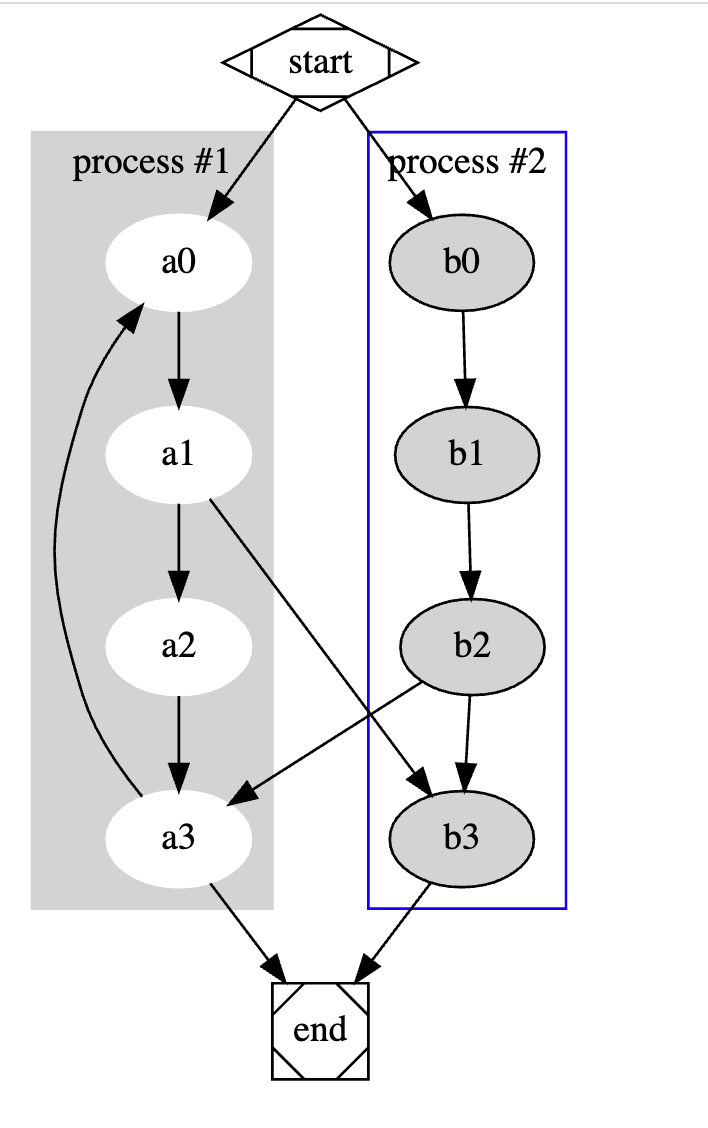
AsciiDoctorPDF inserts an annoying black border around SVG images generated by graphviz. E.g., given this SVG image which was generated by graphviz, if you open it in chrome you can see it has no black border as shown below:

but if the same image is included in an asciidoc document like so:

image::test.svg[]

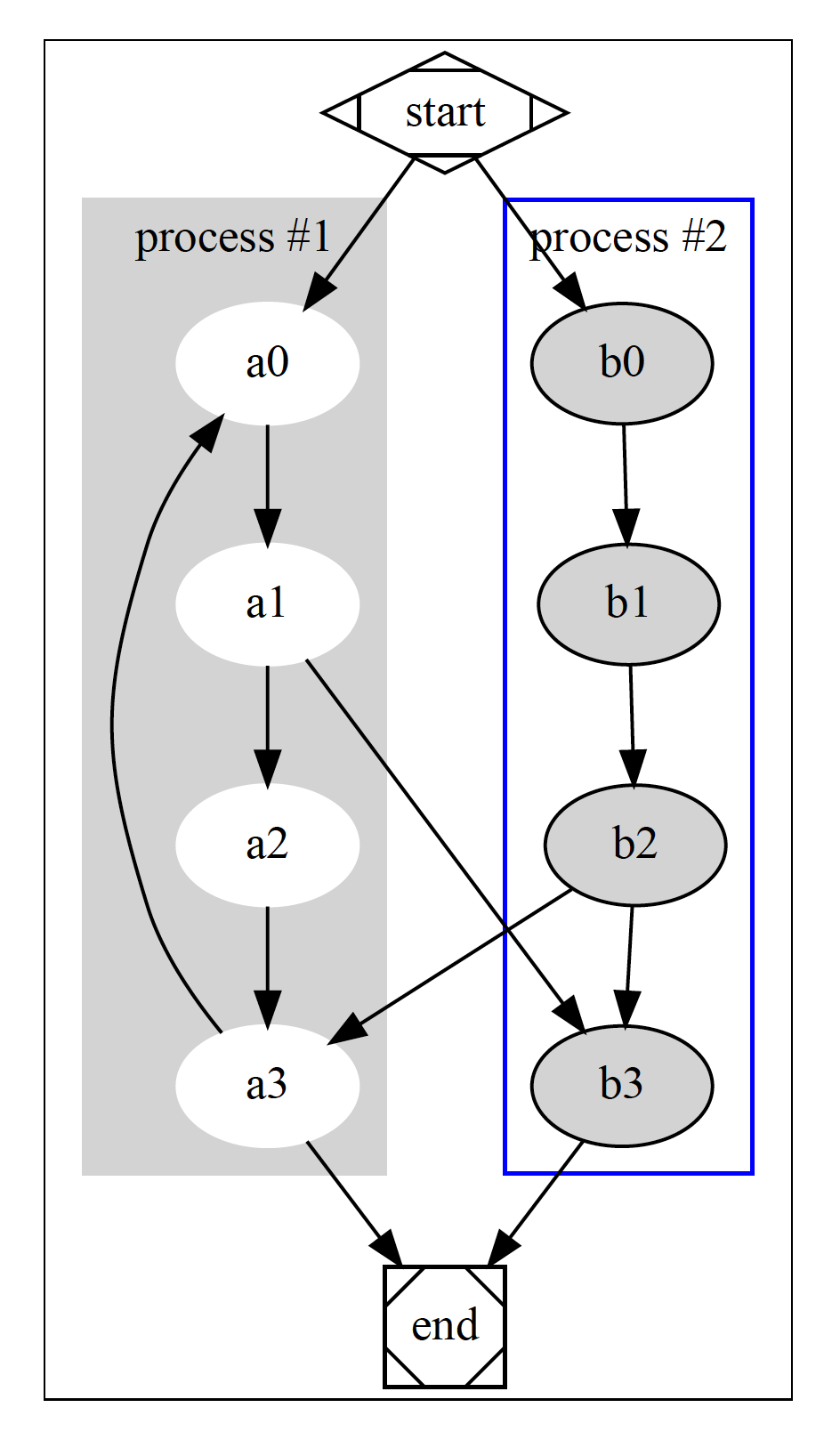
and then converted to PDF using AsciiDoctorPDF the result looks like this:

Upon investigation the reason for this has to do with this line in the SVG:

<polygon fill="white" stroke="transparent" points="-4,4 -4,-403 220,-403 220,4 -4,4"/>

Chrome and other programs correctly interpret transparent to mean a transparent border but AsciiDoctorPDF – or rather the Prawn library it uses under the covers – does not. The fix for this is simple. I use the asciidoctor/docker-asciidoctor:1.2.0 image. There is a file /usr/lib/ruby/gems/2.7.0/gems/prawn-svg-0.30.0/lib/prawn/svg/color.rb in the container. Open this file in a text editor and just add following line to it:

'transparent' => 'ffffff',

under HTML_COLORS dictionary. Voila! That’s it! Problem solved! You are welcome. This will render transparent stroke as white which works for me as my page background is white. Change it if needed to adapt to colour of your page background.

Ideally graphviz should not be generating any polygons with transparent stroke as transparent is not part of the SVG 1.1 spec, but being the sucker it does. So the root cause of the problem is with GraphViz.

Posted in Software | Tagged | Leave a comment

Validating PDFs

Sometimes you need to validate a PDF file. Here are step by step instructions on how to do so. Prerequisites: You need to have Java installed on your machine.

  1. Download preflight-app-2.0.21.jar from https://pdfbox.apache.org/download.cgi
  2. Run it passing the path to your PDF file like so:
$ java -cp preflight-app-2.0.21.jar org.apache.pdfbox.preflight.Validator_A1b test.pdf

References:

Posted in Software | Tagged , , | Leave a comment

Extracting images from a PDF

Sometimes you need to extract images inside a PDF. Here are step by step instructions on how to do that. Prerequisites: You need to have Java installed on your machine.

  1. Download pdfbox-app-1.8.16.jar from https://pdfbox.apache.org/download.cgi. WARNING: version 2.0.21 will not work.
  2. Run the jar file passing it path to your PDF file like so:
java -classpath pdfbox-app-1.8.16.jar org.apache.pdfbox.ExtractImages test.pdf

That’s it. This will extract all images it can find inside the PDF and store them as test-1, test-2 and so on in the same directory as your PDF. Reference: https://pdfbox.apache.org/docs/1.8.11/javadocs/org/apache/pdfbox/ExtractImages.html

Posted in Software | Tagged , , | Leave a comment

ISideWith Quiz

Posted in Politics | Leave a comment

Terrible English by PT sir of a school in village:

Terrible English by PT sir of a school in village: 1) There is no wind in the football..
2) I talk, he talk, why you middle talk? .
3) You rotate the ground 4 times..
4) You go and understand the tree.
5) I’ll give you clap on ur cheeks..
6) Bring your parents and your mother and especially your father.
7) Close the window airforce is coming.
8) I have two daughters and both are girls..
9) Stand in a straight circle..
10) Don’t stand in front of my back
11) Why Haircut not cut..?
12) Don’t make noise.. principle is rotating in the corridor
13) Why are you looking at the monkey outside the window when I’m here?
14) You talking bad habit
15) Give me a red pen of any colour.
16) Can i have some snow in my cold drink?
17) Pick the paper and fall into the dustbin.
18) Both of u stand together separately.
19) Keep quiet the principal just passed away!!

Dont laugh alone pass it….

Posted in Jokes | Leave a comment

Using GPG

As an example let’s say we want to verify integrity of following file from https://hashcat.net/hashcat/

  1. First download the file and its PGP signature (ends with .asc)
$ wget https://hashcat.net/files/hashcat-6.1.1.7z.asc --no-check-certificate
$ wget https://hashcat.net/files/hashcat-6.1.1.7z --no-check-certificate

2. Next download and import the key from PGP keyserver with following command:

$ gpg --keyserver keyserver.ubuntu.com  --recv-keys 8A16544F
gpg: requesting key 8A16544F from hkp server keyserver.ubuntu.com
gpg: /home/sjain68/.gnupg/trustdb.gpg: trustdb created
gpg: key 8A16544F: public key "Hashcat signing key <signing@hashcat.net>" imported
gpg: no ultimately trusted keys found
gpg: Total number processed: 1
gpg:               imported: 1  (RSA: 1)

3. Now test the signature

$ gpg --verify hashcat-6.1.1.7z.asc hashcat-6.1.1.7z
gpg: Signature made Wed 29 Jul 2020 06:25:34 AM EDT using RSA key ID 8A16544F
gpg: Good signature from "Hashcat signing key <signing@hashcat.net>"
gpg: WARNING: This key is not certified with a trusted signature!
gpg:          There is no indication that the signature belongs to the owner.
Primary key fingerprint: A708 3322 9D04 0B41 99CC  0052 3C17 DA8B 8A16 544F

To make the warning disappear we need to sign hashcat’s key with our private key. That will make it trusted. See https://security.stackexchange.com/a/147467/44139

Posted in Software | Leave a comment

Migrating Docker Volumes

By default Docker stores its persistent data in /var/lib/docker folder on Linux systems. This folder is part of the OS disk and in a production (or even dev) setup you might want to store persistent data on a data disk. Many OS Disks come with limited size. On a server that I was working on the /var folder only had 8GB to it.

/dev/mapper/rootvg-varlv   7.8G  7.8G     0 100% /var

It got full fast and then we had a big problem. We had running containers on the machine. What to do now? First we had to attach a data disk to the machine. Once that is done follow the recipe below to migrate Docker’s storage to another folder while keeping everything intact! The instructions below are for Red Hat Enterprise Linux (RHEL) and so should work as-is on CentOS. On other systems you might need some tweaks to the commands.

The new location is /app which resides on a different disk in this writeup.

Step 1: Stop Docker daemon

#-> systemctl stop docker

Step 2: Copy /var/lib/docker to new location

Copy the whole of /var/lib/docker not just the volumes inside it or you will lose your containers etc.

#-> rsync -aP /var/lib/docker /app

Run ls /app/docker to verify everything is there.

#-> ls /app/docker
builder   containerd  image    overlay2  runtimes  tmp    volumes
buildkit  containers  network  plugins   swarm     trust

Step 3: Rename /var/lib/docker to /var/lib/docker.old

For safety, always retain the old directory.

#-> mv /var/lib/docker /var/lib/docker.old

To see the file size

#-> du -ch -d 1 /var/lib/docker.old
212K	/var/lib/docker.old/containerd
1.1G	/var/lib/docker.old/overlay2
72K	/var/lib/docker.old/buildkit
1.5M	/var/lib/docker.old/containers
20K	/var/lib/docker.old/builder
62M	/var/lib/docker.old/swarm
4.0K	/var/lib/docker.old/tmp
24K	/var/lib/docker.old/plugins
995M	/var/lib/docker.old/volumes
4.0K	/var/lib/docker.old/runtimes
4.0K	/var/lib/docker.old/trust
372K	/var/lib/docker.old/network
9.5M	/var/lib/docker.old/image
2.1G	/var/lib/docker.old
2.1G	total

WARNING: If you run mv /var/lib/docker /app/docker.old its going to hang for a while because /app is on another filesystem and so it has to really move the files to that folder – it can’t just rename the folder. So don’t do that. Run rsync again if you want to keep an archive of the data on /app.

Step 4: Add symlink from /var/lib/docker to /app/docker

Note the destination folder comes as the first argument to the ln command:

#-> ln -s /app/docker /var/lib/docker

The old containers have /var/lib/docker paths configured in them and so we need to setup this symlink so that we can restart the old containers and everything works.

Verify:

#-> ls -al /var/lib/docker
lrwxrwxrwx 1 root root 11 Sep 29 17:36 /var/lib/docker -> /app/docker

This is the error I got when trying to restart the container if I skipped this step and did not setup the symlink:

#-> docker start middleware-mysql
Error response from daemon: error evaluating symlinks from mount source "/var/lib/docker/volumes/middleware-mysql/_data": lstat /var/lib/docker/volumes: no such file or directory
Error: failed to start containers: middleware-mysql

Step 5: Edit /lib/systemd/system/docker.service and set the --data-root variable

The --data-root is explained below:

--data-root string                      Root directory of persistent Docker state (default "/var/lib/docker")

Edit following file:

#-> vi /lib/systemd/system/docker.service

and add entry for --data-root pointing it to /app/docker:

ExecStart=/usr/bin/dockerd --data-root /app/docker

Step 6: Reload configuration

#-> systemctl daemon-reload

Step 7: Restart Docker

#-> systemctl start docker

Run systemctl status docker to verify everything is good

Step 8: Restart containers

Finally just restart the containers:

#-> docker start foo
#-> docker start bar

That’s it! Everything is restored.

It was a nerve-racking experience for sure. Now I saw following when I did a df -h

#-> df -h
Filesystem                 Size  Used Avail Use% Mounted on
devtmpfs                   3.9G     0  3.9G   0% /dev
tmpfs                      3.9G  4.0K  3.9G   1% /dev/shm
tmpfs                      3.9G  378M  3.6G  10% /run
tmpfs                      3.9G     0  3.9G   0% /sys/fs/cgroup
/dev/mapper/rootvg-rootlv  7.8G  145M  7.2G   2% /
/dev/mapper/rootvg-usrlv   9.8G  2.1G  7.2G  23% /usr
/dev/sda1                  976M   83M  826M  10% /boot
/dev/sdc                   246G  2.1G  232G   1% /app
/dev/mapper/rootvg-homelv  976M  364M  546M  40% /home
/dev/mapper/rootvg-optlv   2.0G  1.6G  280M  85% /opt
/dev/mapper/rootvg-varlv   7.8G  7.5G     0 100% /var
/dev/mapper/rootvg-tmplv   2.0G  379M  1.5G  21% /tmp
/dev/sdb1                   16G  2.1G   13G  14% /mnt/resource
tmpfs                      797M     0  797M   0% /run/user/48081
overlay                    246G  2.1G  232G   1% /app/docker/overlay2/b65f1433823722f8bba50ff4461f8a8789a9f652f33532326c96bc6215af9d28/merged
shm                         64M     0   64M   0% /app/docker/containers/cf51fefa07b118eb252b382947650ad3fbd58a2dbeb2cd7c72e23ab1a0f9e862/mounts/shm
overlay                    246G  2.1G  232G   1% /app/docker/overlay2/ca0999cd7dee9d9b3a9911150ff4e6bc06d8c5552a9faa2158f3ecc35cce3a9f/merged
shm                         64M     0   64M   0% /app/docker/containers/1f1ff1dc1e4cf96decdd6ea57fe51a72c1edbfdad89771e396f217fc5d294383/mounts/shm
Posted in Software | Leave a comment

Understanding Internals of Chaincode getState/putState calls

If we look at the ChaincodeStub class in $/hyperledger/fabric-chaincode-node/libraries/fabric-shim/lib/stub.js we can see following code

async getState(key) {
        logger.debug('getState called with key:%s', key);
        // Access public data by setting the collection to empty string
        const collection = '';
        return await this.handler.handleGetState(collection, key, this.channel_id, this.txId);
    }

    async putState(key, value) {
        // Access public data by setting the collection to empty string
        const collection = '';
        if (typeof value === 'string') {
            value = Buffer.from(value);
        }
        return await this.handler.handlePutState(collection, key, value, this.channel_id, this.txId);
    }

The code for the handler (which is of type ChaincodeSupportClient) can be found in $/hyperledger/fabric-chaincode-node/libraries/fabric-shim/lib/handler.js

async handleGetState(collection, key, channel_id, txId) {
        const msg = {
            type: fabprotos.protos.ChaincodeMessage.Type.GET_STATE,
            payload: fabprotos.protos.GetState.encode({key, collection}).finish(),
            txid: txId,
            channel_id: channel_id
        };
        logger.debug('handleGetState - with key:', key);
        return await this._askPeerAndListen(msg, 'GetState');
    }

    async handlePutState(collection, key, value, channel_id, txId) {
        const msg = {
            type: fabprotos.protos.ChaincodeMessage.Type.PUT_STATE,
            payload: fabprotos.protos.PutState.encode({key, value, collection}).finish(),
            txid: txId,
            channel_id: channel_id
        };
        return await this._askPeerAndListen(msg, 'PutState');
    }

and it looks like this handler is instantiated in $/hyperledger/fabric-chaincode-node/libraries/fabric-shim/lib/chaincode.js

static start(chaincode) {
...
const client = new Handler(chaincode, url, optsCpy);

which in turn gets called when the chaincode is registered in $/hyperledger/fabric-chaincode-node/libraries/fabric-shim/lib/contract-spi/bootstrap.js

static register(contracts, serializers, fileMetadata, title, version) {
        // load up the meta data that the user may have specified
        // this will need to passed in and rationalized with the
        // code as implemented
        const chaincode = new ChaincodeFromContract(contracts, serializers, fileMetadata, title, version);

        // say hello to the peer
        shim.start(chaincode);
    }
Posted in Software | Leave a comment