Where are the Logs?

TL;DR: When running WordPress inside a container based on the wordpress:php7.4-fpm-alpine image, docker logs will only show you the system logs. Your own log messages i.e., the messages you output in your application using the error_log function will appear in the WP_DEBUG_LOG file irrespective of what you set the error_log directive to in the /usr/local/etc/php/conf.d/error-logging.ini file [1]. This assuming you have WP_DEBUG enabled. If the WP_DEBUG is disabled then only the error_log directive will make a difference. If you want to log to a location other than WP_DEBUG_LOG specify the location explicitly in the error_log function using message type 3. Logging to /dev/stderr or /proc/self/fd/2 or /proc/1/fd/2 will not make the messages appear in docker logs [2]

My goal in this exercise was to be able to see my application logs when I run the docker logs command. As I learned this is not possible without some advanced hacks which I didn’t get into. The first lesson I learned is that when docker logs is called it only outputs the logs of the PID 1 process running inside the container. Further these logs are stored in the special file /proc/1/fd/2 which is a pipe

bash-5.0# ls -al /proc/1/fd/2
l-wx------    1 root     root            64 Mar 24 17:15 /proc/1/fd/2 -> pipe:[20292]

You can try echoing something into /proc/1/fd/2 and it will immediately appear in docker logs. Some posts say to log to /proc/self/fd/2 to make log messages appear in docker logs but it does not work. And logging to /proc/1/fd/2 from your application also does not work because of permissions related limitations.

Re: the location where messages are logged by default, I found two places where this location is defined in form of error_log directive. These two locations are:

/usr/local/etc/php/conf.d/error-logging.ini
/usr/local/etc/php-fpm.d/docker.conf

Which of these two is relevant and matters ultimately? The directive in

/usr/local/etc/php-fpm.d/docker.conf

is controlling where the PHP-FPM process and the www child processes it forks will output their messages. This directive is explained in php-fpm’s configuration file. By default the logs of child processes are discarded unless the catch_workers_output option is set to yes. One can see the www child processes in the output below:

bash-5.0# ps aux | grep php
    1 root      0:00 php-fpm: master process (/usr/local/etc/php-fpm.conf)
   72 www-data  0:00 php-fpm: pool www
   73 www-data  0:00 php-fpm: pool www

It is the child processes which run our application code inside the container. You can see the child process runs as www-data i.e., has privileges associated with www-data user. PHP-FPM exposes a log_level directive that can be tweaked to control the verbosity of PHP-FPM logs. By default it is set to notice. Try setting it to debug in /usr/local/etc/php-fpm.conf (or the /usr/local/etc/php-fpm.d/docker.conf file) and you will see the difference.

; Log level
; Possible Values: alert, error, warning, notice, debug
; Default Value: notice
;log_level = notice
;log_level = debug

Coming back, the directive that controls where application logs are output (by application logs I mean log messages that are output as result of calling PHP’s error_log function) is defined in

bash-5.0# cat /usr/local/etc/php/conf.d/error-logging.ini
error_reporting = E_ERROR | E_WARNING | E_PARSE | E_CORE_ERROR | E_CORE_WARNING | E_COMPILE_ERROR | E_COMPILE_WARNING | E_RECOVERABLE_ERROR
display_errors = Off
display_startup_errors = Off
log_errors = On
error_log = /dev/stderr
log_errors_max_len = 1024
ignore_repeated_errors = On
ignore_repeated_source = Off
html_errors = Off

The /dev/stderr is symlink to /proc/self/fd/2 which is a link to /dev/pts/0 which exists only while a terminal is attached to a container

bash-5.0# ls -al /dev/stderr
lrwxrwxrwx    1 root     root            15 Mar 24 17:15 /dev/stderr -> /proc/self/fd/2
bash-5.0# ls -al /proc/self/fd/2
lrwx------    1 root     root            64 Mar 24 18:23 /proc/self/fd/2 -> /dev/pts/0

When the container is detached from any terminal you will observe

WITSC02X6385JGH:~ sjain68$ docker exec wordpress ls -al /proc/self/fd/2
l-wx------    1 root     root            64 Mar 24 18:24 /proc/self/fd/2 -> pipe:[23169]

I think the pipe in above is only temporary. Anyway logging to /dev/stderr does not cause messages to appear in docker logs. And I have tried logging to /proc/1/fd/2 directly and it gives this error:

[23-Mar-2021 20:26:06 UTC] PHP Warning:  error_log(/proc/1/fd/2): failed to open stream: Permission denied in /var/www/html/wp-content/logging.php on line 11

The funny thing is that on another container I do see application logs in docker logs. On this container I observe:

$ docker exec -it wordpress ls -al /proc/self/fd/2
lrwx------    1 root     root            64 Mar 24 18:27 /proc/self/fd/2 -> /dev/pts/1

The confusion does not end here. I changed the log location in /usr/local/etc/php/conf.d/error-logging.ini and it did not make any difference. It turns out that when WP_DEBUG is enabled, WordPress overrides whatever log location you may have set in /usr/local/etc/php/conf.d/error-logging.ini with the log location given by WP_DEBUG_LOG. The code that does this can be found here.
Posted in Software | Tagged | Leave a comment

Laws that You did not Learn in School


01. *LORENZ’S LAW OF MECHANICAL REPAIR*
Once  your hands become coated with grease, your nose will begin to itch.

02. *ANTHONY’S LAW OF THE WORKSHOP*
Any tool, when dropped, will roll to the least accessible corner.

03. *KOVAC’S CONUNDRUM*
When u dial a wrong number, u never get an engaged tone.

04. *CANNON’S KARMIC LAW*
If u tell the boss u were late for work because u had a flat tyre, the next morning u will have a flat tyre.

05 *O’BRIEN’S VARIATION LAW*
If u change queues, the one u have left will start to move faster than the one u are in now.

06. *BELL’S THEOREM*
When the body is immersed in water, the telephone rings.

07. *RUBY’S PRINCIPLE OF CLOSE ENCOUNTERS*
The probability of meeting someone u know increases when u are with someone u don’t want to be seen with.

08. *WILLOUGHBY’S LAW*
When u try to prove to someone that a machine won’t work, it will.

09. *ZADRA’S LAW OF BIOMECHANICS*
The severity of the itch is inversely proportional to the reach.

10. *BREDA’S RULE*
At any event, the people whose seats are farthest from the aisle arrive last.

11. *OWEN’S LAW*
As soon as u sit down to a cup of hot coffee, your boss will ask u to do something which will last until the coffee is cold.

12. *SID’S LAW*
When you need something you will never find it in your home.

13 *NEERA’S LAW*
After you throw something you will immediately need it the next day.

Posted in Jokes | Leave a comment

Career Advice

If you end up working in a non-FAANG industry, you’ll see fewer developers and less support from non-technical staff, but you’ll have plenty of opportunity to add massive value. 

Another distinct difference for software engineers is that you’re seen as a liability, whereas FAANG companies would view you as an asset. At a FAANG company, you’re valuable because you contribute to the bottom line. At a company in a tech industry, this isn’t always the case. The company will view you like every other business function. You’re an expense that has to prove itself every year, sometimes every quarter. 

Because of this, a company outside the software industry is likely to pay you less. The company will want to pay the direct contributors first. This group may be project managers, auditors, or even account executives. But if your software isn’t a key driver for revenue, don’t expect to earn a hefty salary. 

Based on my experience, outside of software-driven industries, you may be more likely to work with temporary employees. Companies often want to integrate software into their business but are not be willing to pay for a full-time developer. They will then hire temporary workers that work for six to twelve months at a time. There are many issues that may arise with temporary workers. Contractors may not understand your development infrastructure. You might spend unnecessary time making sure both of you are on the same page. When they leave, you may be the one who has to take extra time to understand the code they left behind. Any knowledge they have often leaves the company when they do.

Posted in Career | Leave a comment

How to debug WordPress PHP code running inside a Docker container from VS Code

Preface: The steps here worked for me on Mac. You may run into issues with Windows if you are using WSL2.

This article describes the steps you need to do to debug WordPress PHP code that is running inside a Docker container. The instructions here are tested to work with a Docker container based on wordpress:php7.4-fpm-alpine image. For other images YMMV when following these instructions (esp. the part where we install Xdebug)

The first step is to install Xdebug  which is PHP’s debugger. Do this by running following from inside the Docker container ref  (Do not install Xdebug using apk add or you will run into issues ):

apk --no-cache add pcre-dev ${PHPIZE_DEPS} \ 
  && pecl install xdebug-3.1.6 \
  && docker-php-ext-enable xdebug \
  && apk del pcre-dev ${PHPIZE_DEPS}

pecl is the equivalent of npm for PHP and can be found in /usr/local/bin.

Log


This will do following things:

  • build and install Xdebug (I have specified version 3.1.6 because versions higher than 3.1.6 require PHP 8) under /usr/local/lib/php/extensions/no-debug-non-zts-20190902/xdebug.so
  • create a /usr/local/etc/php/conf.d/docker-php-ext-xdebug.ini file with just following line in it:
zend_extension=/usr/local/lib/php/extensions/no-debug-non-zts-20190902/xdebug.so


Tip: When you open /usr/local/etc/php/conf.d/docker-php-ext-xdebug.ini it might already have a line in it:

zend_extension=xdebug.so

You only need one of the two. If you add both, you might see following message in PHP-FPM logs when you restart fpm process:

Cannot load Xdebug - it was already loaded

For more see here.


You can now check if Xdebug is installed successfully by running:

bash-5.0# php -v
PHP 7.4.4 (cli) (built: Mar 24 2020 01:34:16) ( NTS )
Copyright (c) The PHP Group
Zend Engine v3.4.0, Copyright (c) Zend Technologies
    with Xdebug v3.0.2, Copyright (c) 2002-2021, by Derick Rethans
    with Zend OPcache v7.4.4, Copyright (c), by Zend Technologies

If you want to see all the ini files that PHP loads, you can do that by running:

# php --ini

Now to enable remote debugging add following lines to docker-php-ext-xdebug.ini. For Windows see later:

xdebug.mode = debug
xdebug.start_with_request = yes
xdebug.client_port = 9000
xdebug.remote_handler=dbgp
xdebug.client_host=host.docker.internal
xdebug.idekey=VSCODE
xdebug.log=/usr/local/etc/php/xdebug.log

If the log file does not exist one will be created at time of debugging. But it gets created with root as its owner and is inaccessible to the www-data user which is the user php-fpm runs as. So you might as well create the file and chown the owner to www-data.

Refer this  page for an explanation of the settings.

Install PHP debug extension for VS Code. After installing the extension, create or open existing launch.json and add following section to it:

{
            "name": "Listen for XDebug",
            "type": "php",
            "request": "launch",
            "port": 9000,
            "log": true,
            "externalConsole": false,
            "pathMappings": {
                "/var/www/html": "${workspaceRoot}/www-html",
            },
            "ignore": [
                "**/vendor/**/*.php"
            ]
        }

The pathMappings is used to map code inside the Docker container to code stored locally. Correct it as appropriate in your case. The port should match the port declared in xdebug.client_port.

Now run VS Code in debug mode with above configuration. The blue ribbon should turn orange and you will be able to set breakpoints.

Next, we need to restart the php-fpm process for xdebug settings in docker-php-ext-xdebug.ini to take effect. I do this by just restarting the container. An alternate way – one that I haven’t tried – is to run this  from inside the container:

# kill -USR2 1

Now you can make a request and the VS Code debugger should break!

You might be wondering two things:

  • we have php-fpm running on port 9000 in our Docker container. Then how come we can use same port in xdebug.client_port?
  • we did not have to publish the port. How come VS Code is able to connect to Xdebug?

The answer is that it works because Xdebug is the client and it is VS Code that is the server in this setup!

If you don’t have VS Code running you will see following errors in Docker log because Xdebug is not able to connect to VS Code:

NOTICE: PHP message: Xdebug: [Step Debug] Could not connect to debugging client. Tried: host.docker.internal:9000 (through xdebug.client_host/xdebug.client_port) 😦

Comment out the xdebug settings (i.e., turn xdebug off) when VS Code is not running to avoid the errors.

Windows Issues

On Windows (Windows 11, Docker Desktop, WSL2) I couldn’t get it to work. I think the underlying issue is some firewall that blocks WSL2 (and thus Xdebug) from connecting to VS Code. You can verify it using the steps described here. Then it randomly worked one day with this config (no guarantees it will continue to work. I am still keeping my fingers crossed):

zend_extension=/usr/local/lib/php/extensions/no-debug-non-zts-20190902/xdebug.so
xdebug.mode=debug
xdebug.start_with_request=yes
xdebug.client_port=9003
xdebug.remote_handler=dbgp
xdebug.client_host=x.x.x.x
xdebug.discover_client_host=true
xdebug.client_discovery_header=HTTP_FORWARD_HOST
xdebug.remote_enable=1
xdebug.idekey=VSCODE
xdebug.log=/usr/local/etc/php/xdebug.log

where you replace x.x.x.x with

$ ip addr show eth0 | grep -oP '(?<=inet\s)\d+(\.\d+){3}'

Above command has to be run from WSL2 command prompt. Do not run it inside the Docker container. If you are on a home network, the IP that you will get is likely to begin with 192.168. If you get an IP that begins with something else, chances are its not going to work.

Also refer this and this. On second link you can see someone saying:

When I type ip addr show eth0 | grep -oP '(?<=inet\s)\d+(\.\d+){3}' on my WSL2 terminal, what I get is 172.20.111.76. If I use this IP as the xdebug.client_host, Xdebug is not working. 

My experience was different. When I ran the command on WSL2 command prompt I got an IP that began with 192.168. 192.168.0.0 is the starting point of the reserved private network space that encompasses all IP addresses through the 192.168.0.0-192.168.255.255 range

Posted in Software | Tagged | Leave a comment

Exchange of text messages between Husband and Wife

Exchange of text messages:


Husband: You are negative


Wife: and you are stubborn, arrogant, a low life, care about no one but yourself and your friends, all you are interested in is your own self, all your life not fulfilled even one of your promises. It is only I who is putting up with such a miser and insensitive man. You good for nothing, fat, ugly man. Even your hair transplant failed.


Husband: I was just informing you that your Covid test is negative.


Wife: oh………sorry!

Posted in Jokes | Leave a comment

Notes on Programming Hyperledger Fabric

I just finished writing a book:
https://www.amazon.com/dp/0578802228

In this post I am making some notes and fun facts about the book for remembrance.

Original TOC Final TOC
  1. Blockchain Primer

  2. Introducing Hyperledger Fabric

  3. A proof of concept app

  4. Setting up your infrastructure

  5. Securing communications with OpenSSL

  6. Establishing the user registry with LDAP

  7. Generating certificates with Fabric CA

  8. Membership services and policies

  9. Transaction ordering

  10. The Peers

  11. Channels

  12. Implementing business logic using Chaincode

  13. Fabric Node.js SDK

  14. Advanced Topics

  15. Appendix A: Installation and setup

  1. Blockchain Primer

  2. A Closer Look at Fabric

  3. Writing Your First Smart Contract

  4. Generating Identities Required to Bootstrap a Network

  5. Provisioning a Three Org Test or Development Network

  6. Debugging Fabric

  7. Provisioning Channel and Installing Chaincode

  8. Performing Transactions on the Network

  9. Updating Channel Configuration

  10. Dockerizing the Network

  11. Securing Communications with TLS

  12. Handling Data Privacy

  13. Running Fabric CA Server

  14. Using Fabric CA Client to obtain X.509 Certificates

  15. Authenticating Users using LDAP

  16. Bonus Chapter: The Bitcoin

  17. Appendix A: Installing Software and Prerequisites

  18. Appendix B: Summary of Commands

And here is a word cloud – list of most commonly occurring words in the book curated to remove common words like like, when, which, user, using, then, what etc.

$ python counter.py full.adoc
[('Fabric', 447), ('peer', 446), ('chaincode', 330), ('certificate', 314), ('Docker', 290), ('orderer', 287), ('client', 285), ('block', 250), ('server', 237), ('container', 224)]

The full manuscript itself is about 1MB in size containing about 150,000 words

$ ls -al full.adoc
-rw-r--r--  1 sjain68  staff  1033787 Dec 17 10:26 full.adoc
$ wc -w full.adoc
  151713 full.adoc

Further Reading (a list of random articles that I discover on HLF post writing the book):

Posted in Software | Tagged | Leave a comment

VS Code + AsciiDoc

Today I learned that VS Code has a pretty good extension for AsciiDoc:

https://marketplace.visualstudio.com/items?itemName=asciidoctor.asciidoctor-vscode

It can even export to PDF using wkhtmltopdf. There is also the option to have it use the Ruby based asciidoctor-pdf to do the conversion.

How to Use

The extension activates automatically when opening an AsciiDoc file (.adoc, .ad, .asc, .asciidoc).

Preview

To show the preview you can use the same commands as the Markdown extension:

  • Toggle Preview – ctrl+shift+v (Mac: cmd+shift+v)
  • Open Preview to the Side – ctrl+k v (Mac: cmd+k v)

The preview refreshes automatically, but it can also be forced with the AsciiDoc: Refresh Preview command.

The preview supports setting attributes through the asciidoc.preview.attributes option.

By default the preview style follows the VSCode theme (workbench.colorTheme). To use Asciidoctor’s style set option asciidoc.preview.useEditorStyle to false. It is also possible to set your own preview stylesheet with the asciidoc.preview.style option.

(See more details under Options)

Export as PDF

The extension provides a quick command to export your AsciiDoc file as PDF.

  • Open the command palette – ctrl+shift+p or F1 (Mac: cmd+shift+p)
  • Select AsciiDoc: Export document as PDF
  • Choose the folder and filename for the generated PDF

By default a separate binary is downloaded and used to render the document in PDF format. To use Asciidoctor PDF set option asciidoc.use_asciidoctorpdf to true.
(See more details under Options)

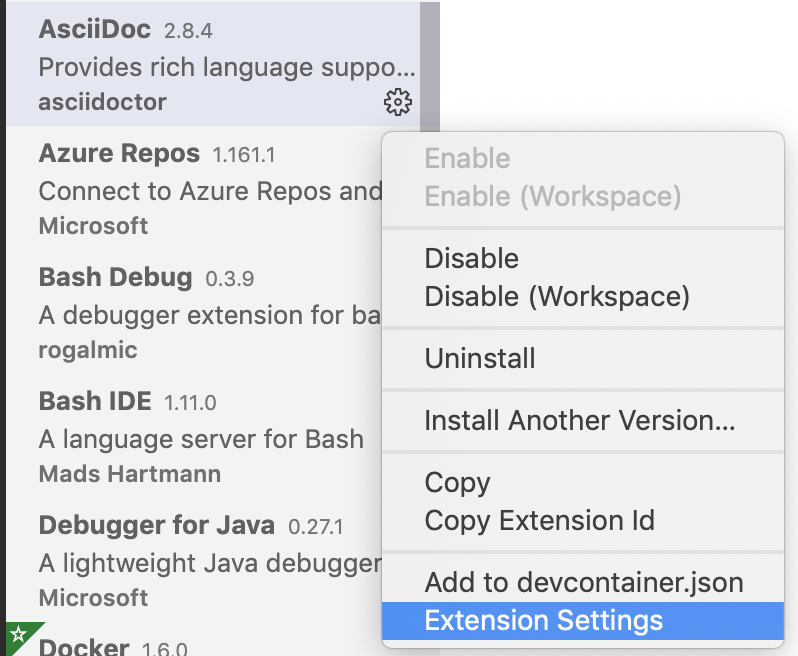
To change the settings first open the extensions tab. then select Asciidoc extension. click on gear icon as shown below

also see https://stackoverflow.com/questions/50477523/how-to-convert-asciidoc-to-pdf/50709725

Posted in Software | Tagged | Leave a comment

Using AsciidocFX

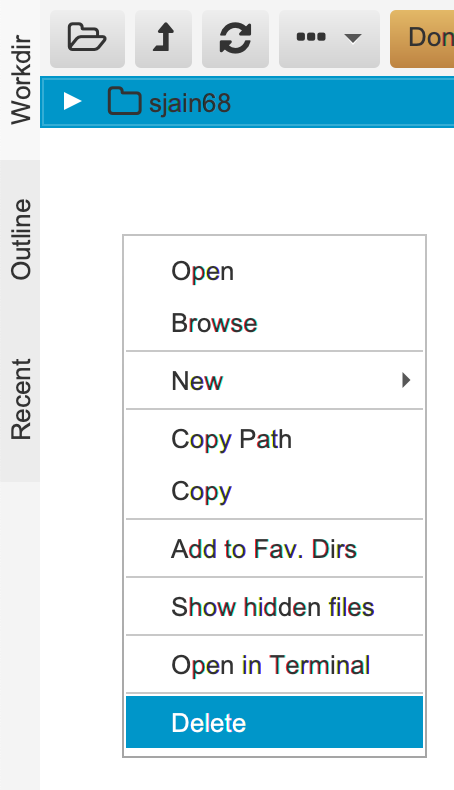
AsciidocFX is one dangerous program. I had it open like this. It had my root folder open in left pane and I was used to Atom where one can remove the folder by right clicking the folder and then remove

I did same thing in AsciidocFX and clicked on Delete. And what does it do? It actually deletes (rm) the folder!

Next I tried to find where can I set the Workdir. There is a settings tab on the right

but it doesn’t show Workdir setting anywhere. You can find all the settings under

$ ls /Users/siddjain/Applications/AsciidocFX/conf
ace_doctypes.json		asciidoctor_html.json		cheatsheet			editor_config.json		public				spellcheck_config.json		themes
ace_themes.txt			asciidoctor_preview.json	docbook				extension_config.json		slide				stored_directories.json
asciidoctor_docbook.json	booksample			docbook-config			location_config.json		spellcheck			terminal_config.json

But here also I did not find Workdir. It turns out you simply double-click on the folder in the file explorer tab to change the Workdir. The left pane is to be used as a file explorer.

AsciidocFX uses a Java converter to convert adoc to PDF. This is very different from asciidoctor-pdf which uses a Ruby converter. asciidoctor-pdf converter is more mature than AsciidocFX. The future of Asciidoctor is asciidoctor-web-pdf which will convert adoc to HTML and then run a headless Chrome to save the HTML as PDF. The project is in early stage.

AsciidocFX is okay for one-pagers etc. For anything serious you should use asciidoctor-pdf. It is faster. I like using asciidoctor-pdf and Adobe Brackets to edit adoc files. Brackets comes with a asciidoc previewer and Alice offline spell checker.

Posted in Software | Leave a comment

Useful Docker commands

Sort images by size

docker images --format "{{.ID}}\t{{.Size}}\t{{.Repository}}" | sort -k 2 -h

List dangling volumes

docker volume ls -f dangling=true --format '{{.Name}}'

Cleaning up Docker resources: https://www.digitalocean.com/community/tutorials/how-to-remove-docker-images-containers-and-volumes#a-docker-cheat-sheet

Where are the logs?

tail -f ~/Library/Containers/com.docker.docker/Data/log/vm/dockerd.log

Docker on Windows

On Windows all Docker data is stored in C:\Users\siddj\AppData\Local\Docker\wsl\disk\docker_data.vhdx

Also note that .vhdx files (Virtual Hard Disk v2 (VHDX) File Format) don’t reduce in size. Their size only increases. WSL data is also stored in a .vhdx file in windows

Correct — a .vhdx file does not automatically shrink in size even when data is deleted from the virtual disk inside the VM. Here’s why and how to fix it.


🧠 Why .vhdx Doesn’t Shrink Automatically

  • .vhdx is a virtual hard disk format used by Hyper-V.

  • When you delete files inside the guest OS, the space becomes available to the guest, but the host file (.vhdx) doesn’t shrink because:

    • The actual data blocks are still allocated on the host.
    • The guest OS just marks the blocks as “free,” but the .vhdx file still contains them.

✅ How to Shrink a .vhdx File

You need to perform two steps:

  1. Zero out the free space in the guest OS
  2. Compact the .vhdx on the host

🧹 Step 1: Zero Out Free Space (Inside the VM)

In Windows guest:

sdelete64 -z C:
  • Download sdelete from Sysinternals
  • The -z flag writes zeros to free space so Hyper-V can compact it

If you’re on Linux, use:

dd if=/dev/zero of=zero.fill bs=1M
sync
rm zero.fill

🔧 Step 2: Compact the VHDX (on the host)

Use PowerShell on the host:

Optimize-VHD -Path "C:\VMs\MyDisk.vhdx" -Mode Full

> Requires Hyper-V module. If you get an error, run as admin and ensure Hyper-V is installed.


📝 Notes

  • Fixed-size VHDX cannot be compacted — this only works for dynamically expanding disks
  • Back up before compacting in case of errors
  • Compacting may take time depending on disk size

Summary of Steps to clean space taken up by Docker Desktop on Windows

Inside WSL2:

docker system df
docker system prune -af --volumes
sudo apt-get clean
pip cache purge || true
npm cache clean --force || true
sudo fstrim -av

Example output of docker system prune -af –volumes: https://gist.github.com/siddhsql/dd39967fb8d033342f55115c642a8575

After this switch to Windows Command Prompt. Shut down WSL2:

wsl --shutdown   # and quit Docker Desktop if it's open

Then compact Docker VHDX by running:

wsl --manage docker-desktop-data --compact

If this does not work try from PowerShell:

Optimize-VHD -Path "${Env:LocalAppData}\Docker\wsl\data\ext4.vhdx" -Mode Full

or try this: https://stackoverflow.com/a/74870395/147530 replacing paths as necessary.

Posted in Software | Leave a comment

Cross-referencing content of another chapter in AsciiDoctorPDF

It is possible to cross-reference chapters in Asciidoc. The way I do it is as follows. First of all I have a top level index.adoc which is the root file that does nothing but include the various chapters one after another. I run the asciidoctor-pdf program on index.adoc. The include directive literally includes the content of another file. What this means is that if you have a 10 line index.adoc which is just including 10 chapters, the end result is as if you had manually copied and pasted the content of those 10 chapters into index.adoc and then run asciidoctor-pdf on top of it.

So in the end its as if asciidoctor-pdf was run on a single file. The normal rules of cross-referncing apply. In documentation you will read that to cross-reference a section from another chapter you have to prefix with filename of the chapter like so <<chap10.adoc#results>>. However you precisely don’t have to do this – at least if you are using the setup described above. Everything ends up as one single file you can can cross-reference content of another chapter like <<results>>. Indeed if you have two chapters and you give the same ID to two sections then there is a collision and conflict at time of cross-referencing. asciidoctor-pdf will issue an error.

Before beginning each chapter I have following preamble stored in a common-settings.adoc:

:figure-number: 0
:listing-number: 0
:table-number: 0
:figure-caption: Figure {counter:chapter}.
:listing-caption: Listing {chapter}.
:table-caption: Table {chapter}.

The figure-number , listing-number and table-number seem to be in-built counters whereas chapter is a counter I define in my book’s preamble.

One tip: With this setup, AsciiDoctorPDF runs into trouble cross-referencing listings and tables of other chapters (cross-referencing within chapter works as expected). Rather than hacking your way around it – which is very difficult – cross-reference the relevant section.


Posted in Software | Tagged , , | Leave a comment