
Why do we do this? so we can host the blog at blog.siddjain.com instead of sidshome.wordpress.com
The setting to do this is in Upgrades -> Domains
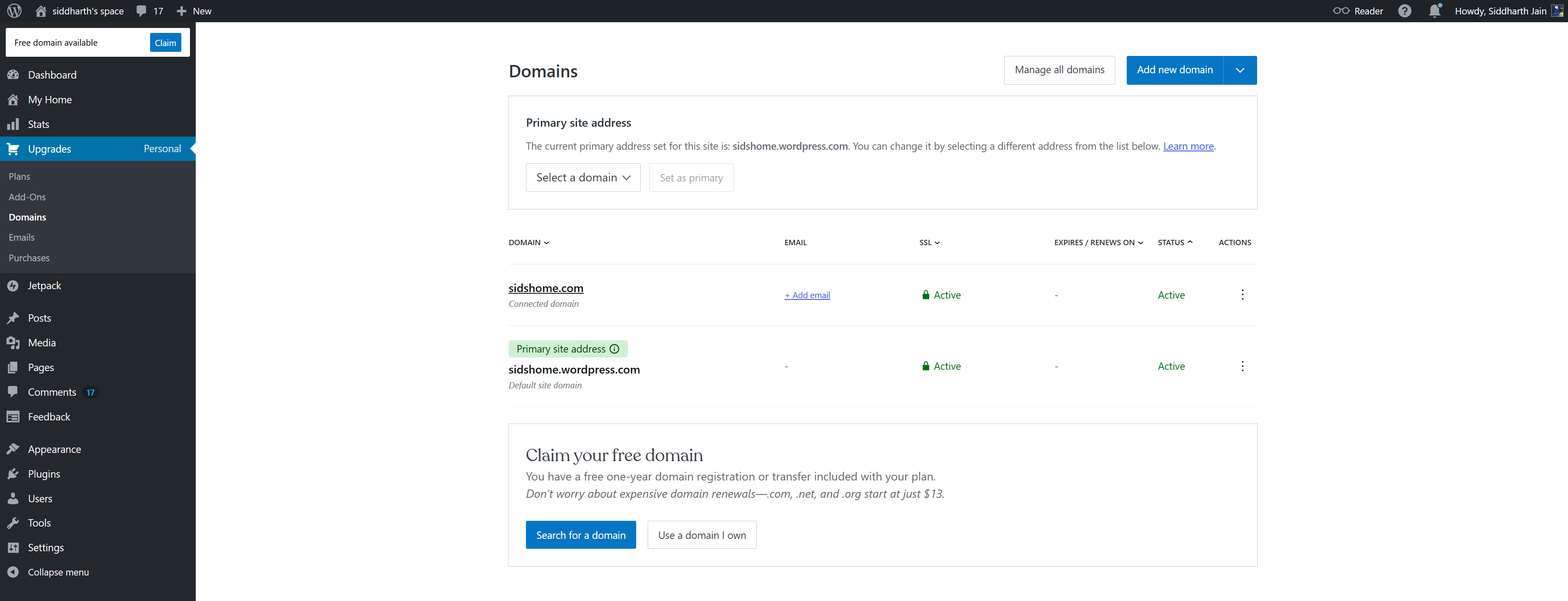
Tip: do NOT use https://wordpress.com/domains/manage. You won’t be able to connect a domain on that page.
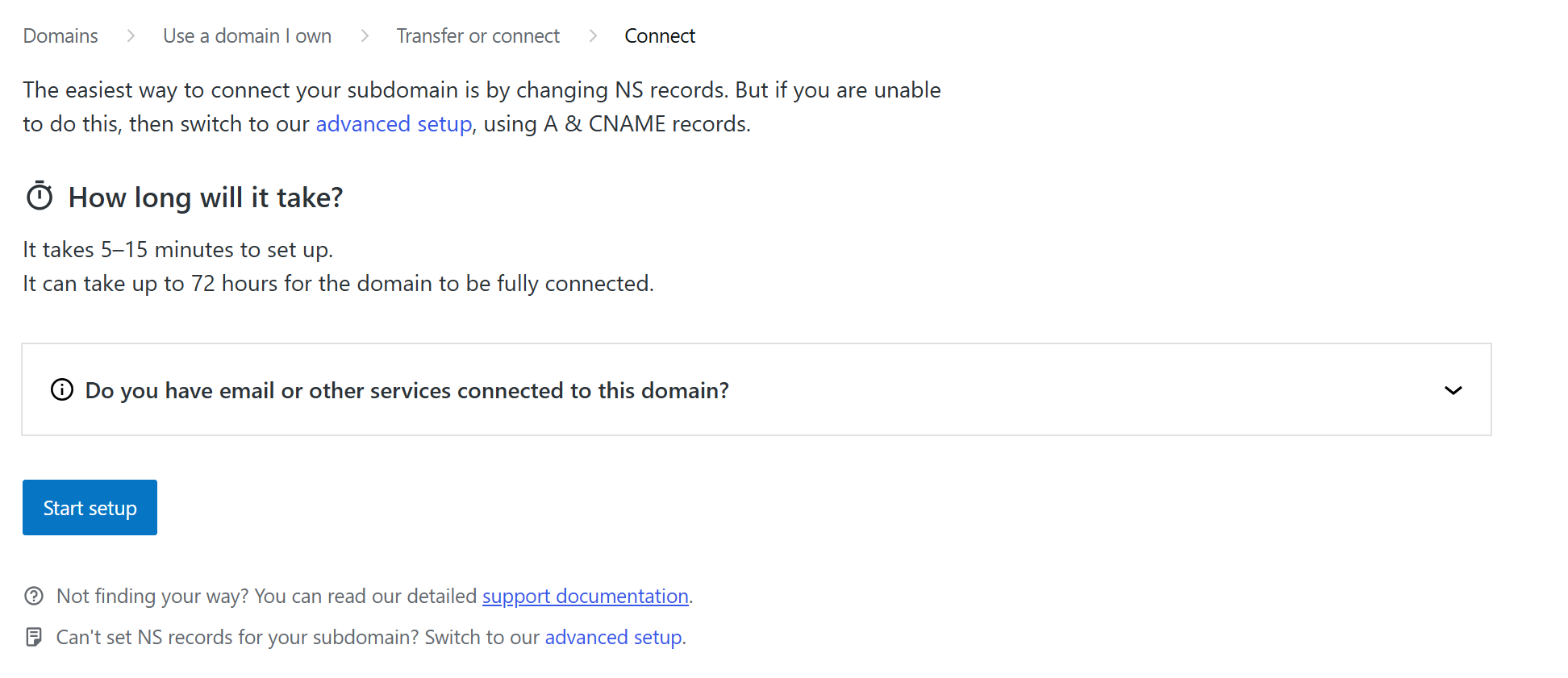
Click on advanced setup
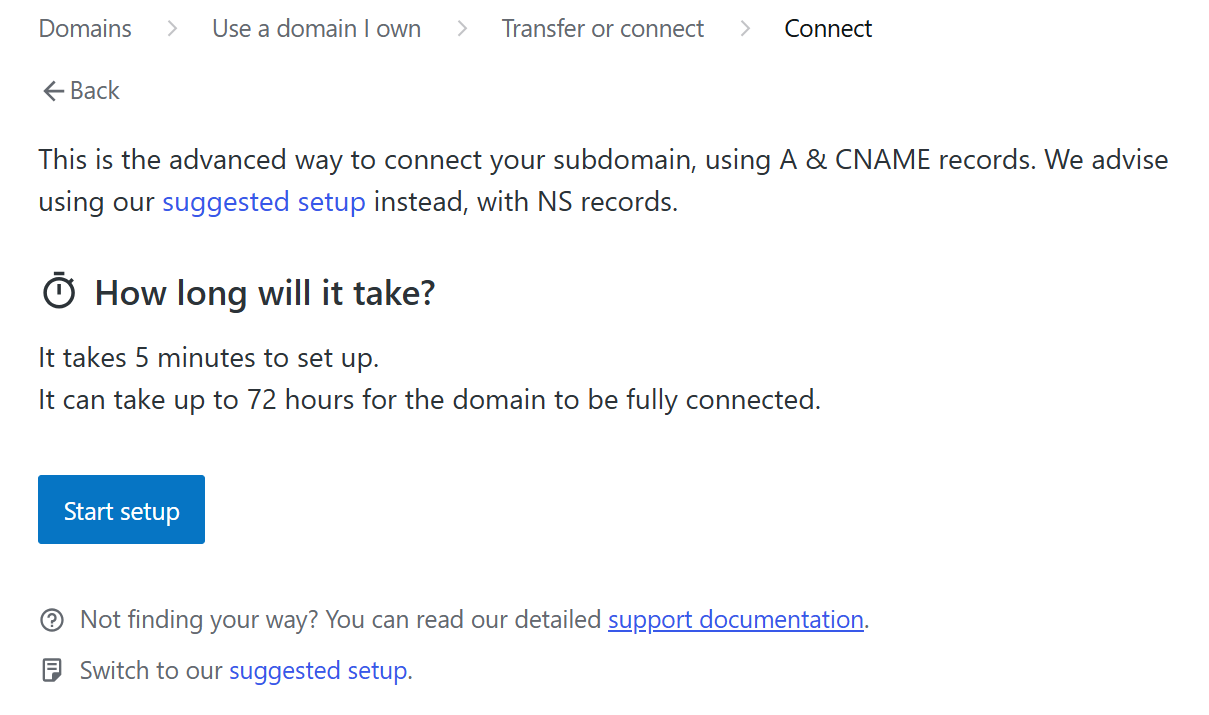
Click on Start setup
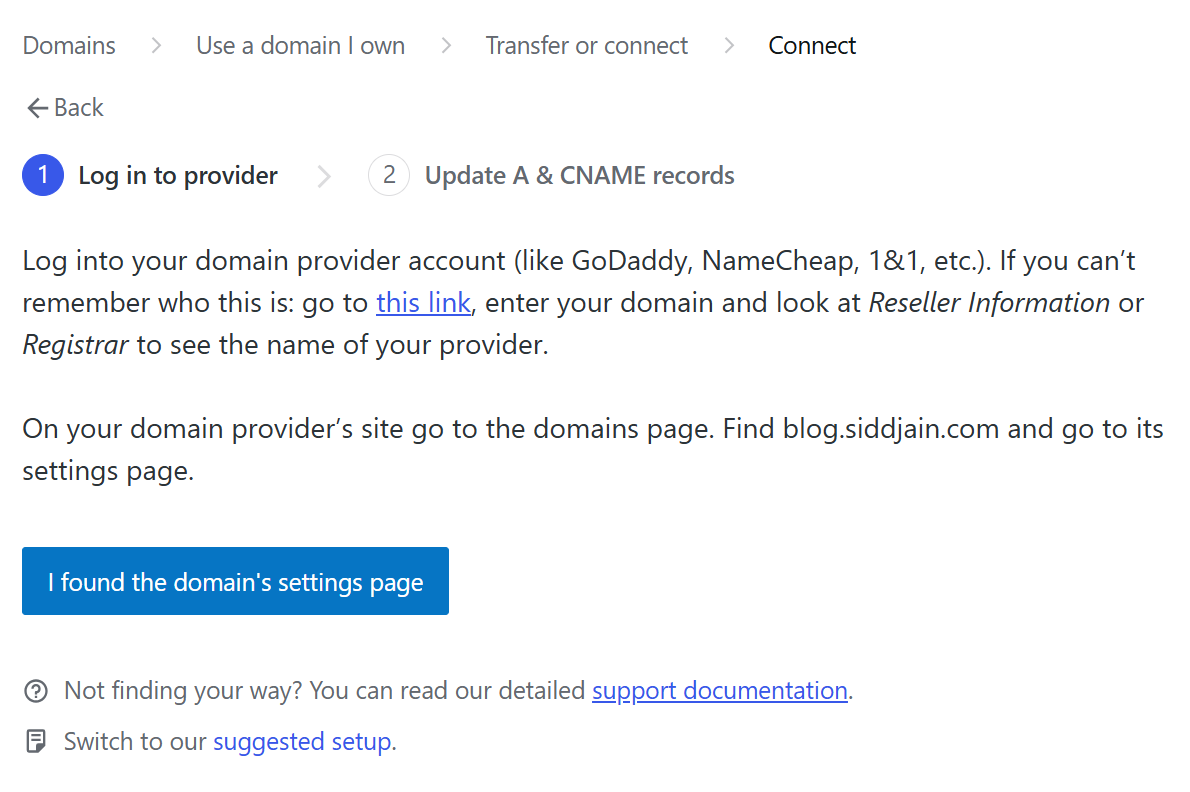
Click on I found the domain’s settings page
There are 2 A records and 1 CNAME record WordPress will ask you to add to your DNS Settings. Do that.

Wait 5 minutes for the records to propagate then click on Verify
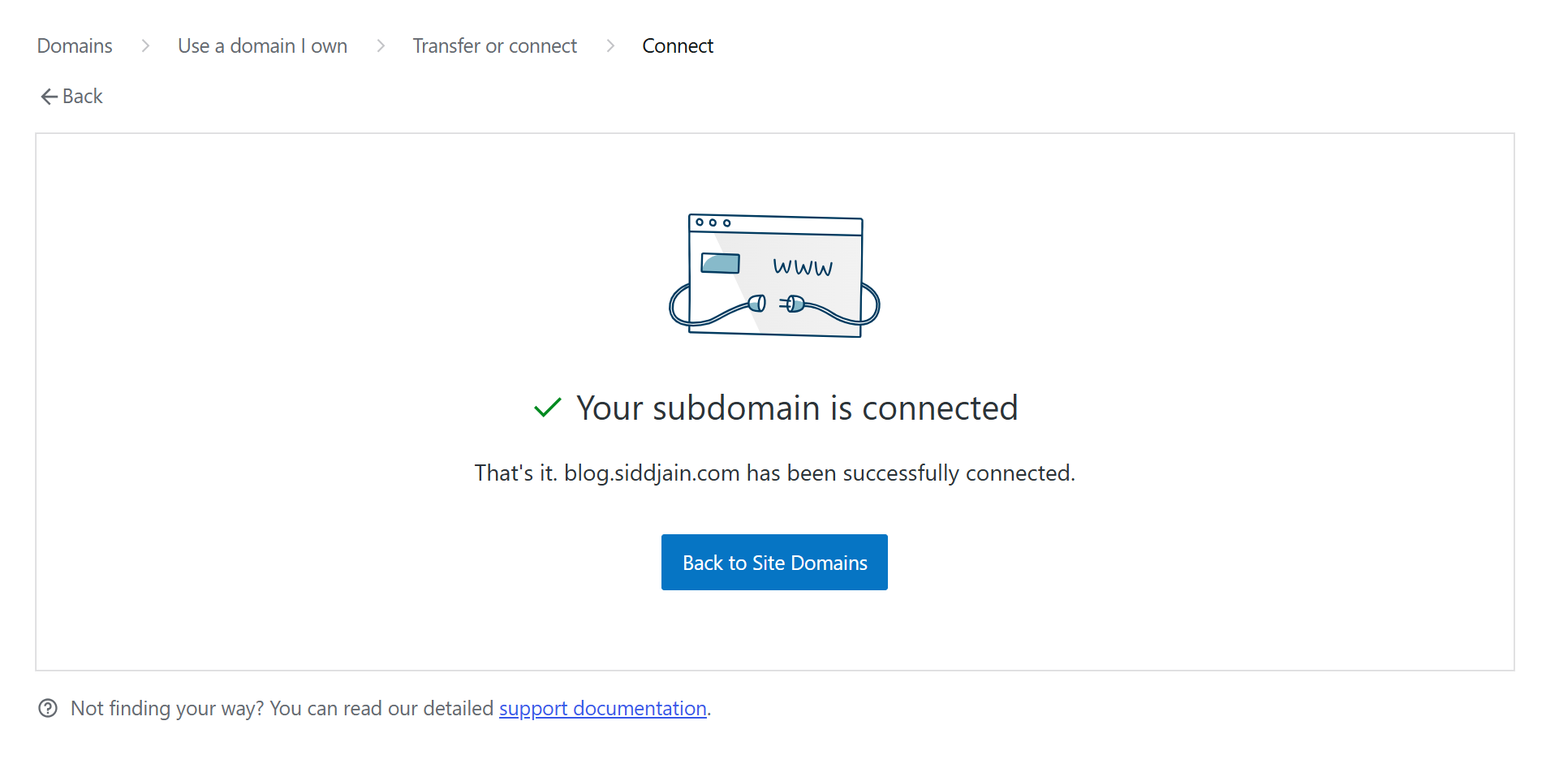
We are not done yet. If you leave things as-is at this point, then your blog will be mirrored on two URLs – yourname.wordpress.com and other.domain.com. You don’t want this as this is really bad for SEO. You want the domain you connected to become the primary and yourname.wordpress.com should redirect to that.
When you set a domain as “Primary,” WordPress automatically adds a rel="canonical" tag to your site’s code and performs a 301 redirect from the .wordpress.com address to your custom URL.
- In your WordPress.com dashboard, go to Upgrades → Domains (or Hosting → Domains).
- You will see a list of all addresses associated with your site.
- Look for
blog.siddjain.com. - Click the three dots (⋯) next to it or click the domain name directly.
- Select Make Primary.
What Happens Next?
- Automatic Redirects: If someone types
siddjain.wordpress.com/my-post, they will be instantly redirected toblog.siddjain.com/my-post. - Search Engine Instruction: Google will see the 301 redirect and the canonical tag, signaling that
blog.siddjain.comis the “official” version to index. - SSL Certificate: WordPress.com will automatically generate an SSL certificate for your subdomain (this can take a few minutes to an hour after setting it as primary).
One Quick Tip for Google Search Console
Even with the redirect in place, it is a “best practice” to go to your Google Search Console account and add blog.siddjain.com as a new property. This allows you to monitor exactly how Google is indexing the new URL.
Luckily WordPress did the above switch to primary for me without me having to do anything. The final setup is like this:
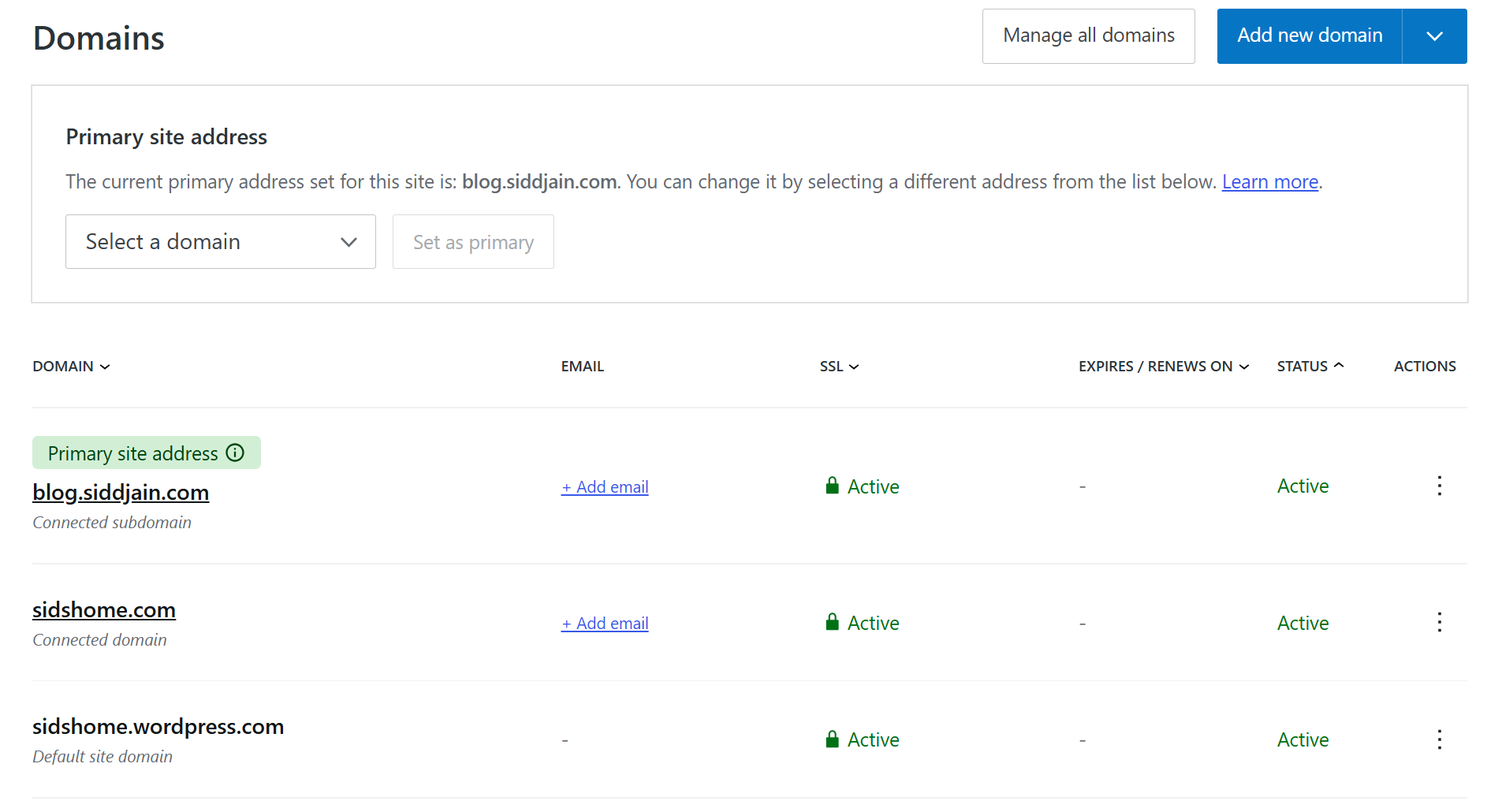
And here are curl requests showing what is happening behind the scenes and verifying the site is not duplicated across two URLs – Google does not like that:
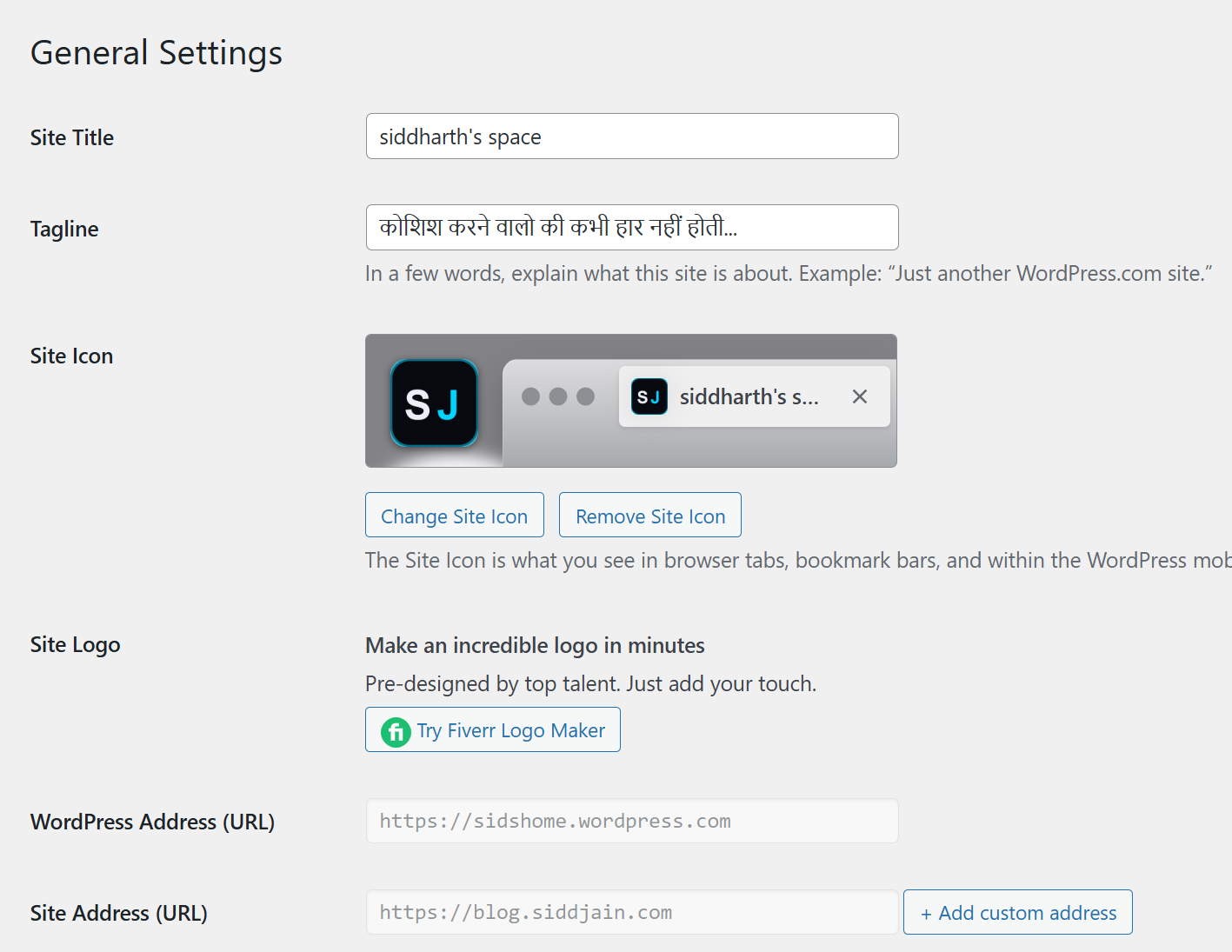
$ curl -I sidshome.wordpress.comHTTP/1.1 301 Moved PermanentlyServer: nginxDate: Fri, 20 Feb 2026 00:46:47 GMTContent-Type: text/htmlContent-Length: 162Connection: keep-aliveLocation: https://sidshome.wordpress.com/Alt-Svc: h3=":443"; ma=86400Server-Timing: a8c-cdn, dc;desc=sea, cache;desc=BYPASS;dur=0.0$ curl -I https://sidshome.wordpress.comHTTP/2 301server: nginxdate: Fri, 20 Feb 2026 00:46:55 GMTcontent-type: text/html; charset=utf-8location: https://blog.siddjain.com/vary: Cookiex-ac: 3.sea _bur MISSalt-svc: h3=":443"; ma=86400strict-transport-security: max-age=31536000server-timing: a8c-cdn, dc;desc=sea, cache;desc=MISS;dur=35.0$ curl -I http://blog.siddjain.comHTTP/1.1 301 Moved PermanentlyServer: nginxDate: Fri, 20 Feb 2026 00:47:14 GMTContent-Type: text/htmlContent-Length: 162Connection: keep-aliveLocation: https://blog.siddjain.com/Alt-Svc: h3=":443"; ma=86400Server-Timing: a8c-cdn, dc;desc=sea, cache;desc=BYPASS;dur=0.0Bonus: You can change the favicon (known as Site Icon) in Settings -> General
 siddharth's space