
I compiled most of this checklist thanks to ChatGPT. Log in to the router dashboard (typically 192.168.0.1) and from there verify:
1. No Virtual Servers
Forwarding -> Virtual Servers

2. DMZ is disabled
Forwarding -> DMZ

3. No Port Triggering
Forwarding -> Port Triggering

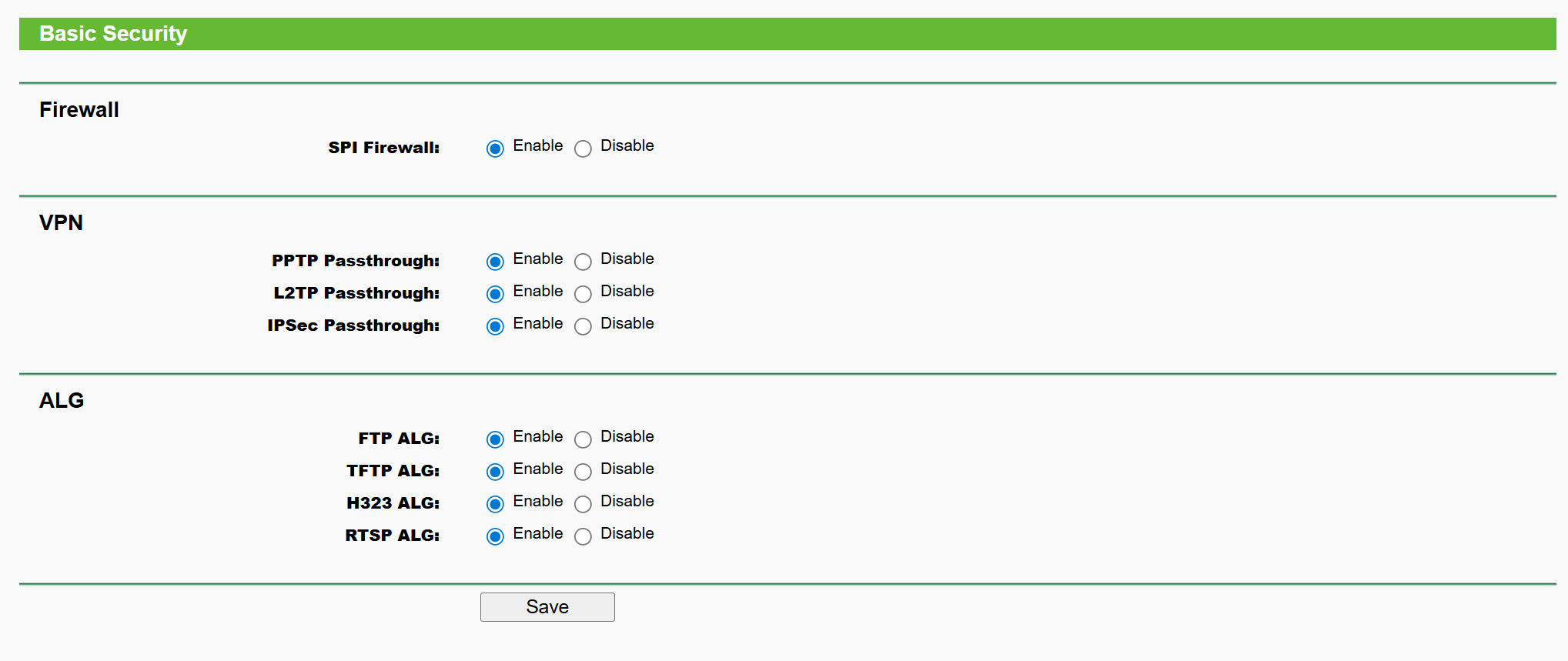
4. SPI Firewall is Enabled
Security -> Basic Security
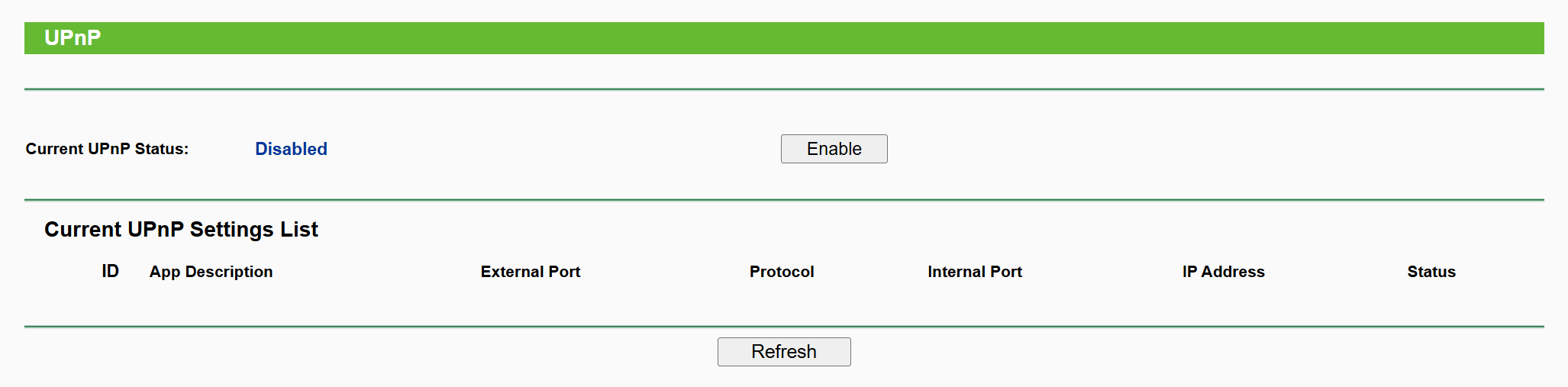
5. UPnP is disabled
Forwarding -> UPnP
6. Remote Management is off
Security -> Remote Management

7. Disable WPS
WPS

8. Use WPA2-AES or WPA3, strong Wi-Fi password
Wireless -> Wireless Security

9. Set Network Profile in Windows to Public
Under Network and Internet

10. Get your router’s public IP address and do a port scan from a VM outside your network
You can get your router’s public IP address from the router admin dashboard or from Powershell:
(Invoke-WebRequest -UseBasicParsing "https://api.ipify.org").Content
Now do a port scan from a computer outside your network to see if there are any open (exposed) ports:
$ sudo nmap -Pn -sS -T3 --top-ports 1000 --reason $HOME_PUBLIC_IP
You want to see output like:
All 1000 scanned ports on c-xxx.hsd1.wa.comcast.net (xxx) are in ignored states.
Not shown: 1000 filtered tcp ports (no-response)
Bonus: scan UDP ports:
$ sudo nmap -Pn -sU -T3 --reason p 53,67,68,69,123,161,500,1900,5353,11211 $HOME_PUBLIC_IP
You want to see:
PORT      STATE         SERVICE  REASON
53/udp    open|filtered domain   no-response
67/udp    open|filtered dhcps    no-response
68/udp    open|filtered dhcpc    no-response
69/udp    open|filtered tftp     no-response
123/udp   open|filtered ntp      no-response
161/udp   open|filtered snmp     no-response
500/udp   open|filtered isakmp   no-response
1900/udp  open|filtered upnp     no-response
5353/udp  open|filtered zeroconf no-response
11211/udp open|filtered memcache no-response
Bonus Commands
Get your IPv6 address:
ipconfig | findstr /i "IPv6"
If this only displays a Link-local IPv6 Address starting with fe80 you don’t have a IPv6 address.
List your network interfaces:
Get-NetAdapterBinding -ComponentID ms_tcpip6 | Format-Table Name,Enabled -AutoSize

Name                               Enabled
----                               -------
Wi-Fi                                 True
Bluetooth Network Connection          True
Ethernet                              True
Ethernet 2                            True
vEthernet (WSL (Hyper-V firewall))    True
Block Malware and Adult Content
Under DHCP settings (and WAN) change primary and secondary DNS to

Refer this. Run ipconfig /all (Windows) and verify:

Use this with caution as it can block legit websites:
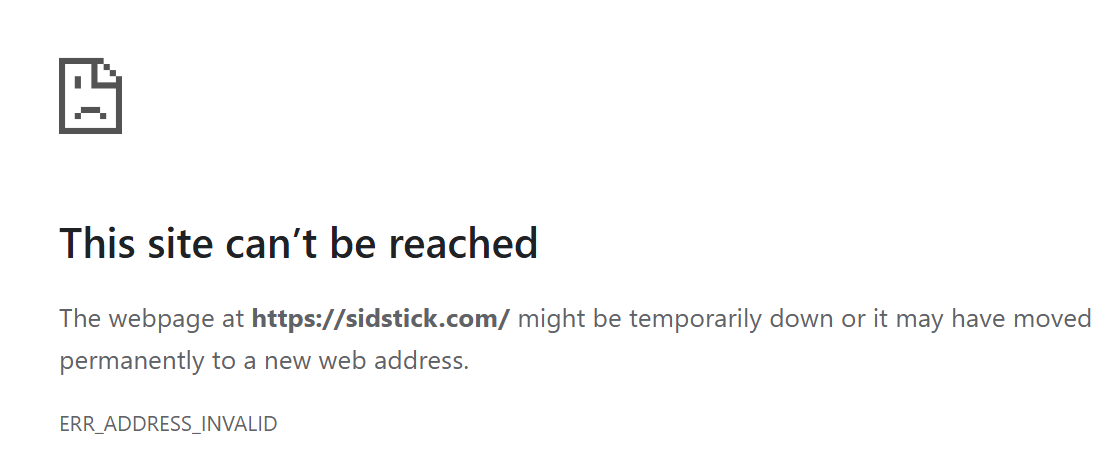
>nslookup sidstick.com
Server:  family.cloudflare-dns.com
Address:  1.1.1.3

Non-authoritative answer:
Name:    sidstick.com
Addresses:  ::
          0.0.0.0
If I change to Google nameservers
nslookup sidstick.com 8.8.8.8
Server:  dns.google
Address:  8.8.8.8

Non-authoritative answer:
Name:    sidstick.com
Address:  35.215.78.203
Rebooting the device
Click the Reboot button under System Tools to reboot this device.
Some settings of this device will take effect only after rebooting, which include:
- Change the LAN IP Address (system will reboot automatically).
- Change the DHCP Settings.
- Change the Web Management Port.
- Upgrade the firmware of this device (system will reboot automatically).
- Restore this device’s settings to the factory defaults (system will reboot automatically).
- Update the configuration with the file (system will reboot automatically).
 siddharth's space