
Sample ~/.gitconfig file:
[user]
	name = Siddharth Jain
	email = sid@gmail.com

[init]
	defaultBranch = master

[core]
  editor = code --wait

[diff]
  tool = vscode

[difftool "vscode"]
  cmd = code --wait --diff $LOCAL $REMOTE

[merge]
  tool = vscode

[mergetool "vscode"]
  cmd = code --wait $MERGED

[pager]
        branch = false
        config = false

[alias]
    lg = lg1
    lg1 = lg1-specific --all
    lg2 = lg2-specific --all
    lg3 = lg3-specific --all

    lg1-specific = log --graph --abbrev-commit --decorate --format=format:'%C(bold blue)%h%C(reset) - %C(bold green)(%ar)%C(reset) %C(white)%s%C(reset) %C(dim white)- %an%C(reset)%C(auto)%d%C(reset)'
    lg2-specific = log --graph --abbrev-commit --decorate --format=format:'%C(bold blue)%h%C(reset) - %C(bold cyan)%aD%C(reset) %C(bold green)(%ar)%C(reset)%C(auto)%d%C(reset)%n''          %C(white)%s%C(reset) %C(dim white)- %an%C(reset)'
    lg3-specific = log --graph --abbrev-commit --decorate --format=format:'%C(bold blue)%h%C(reset) - %C(bold cyan)%aD%C(reset) %C(bold green)(%ar)%C(reset) %C(bold cyan)(committed: %cD)%C(reset) %C(auto)%d%C(reset)%n''          %C(white)%s%C(reset)%n''          %C(dim white)- %an <%ae> %C(reset) %C(dim white)(committer: %cn <%ce>)%C(reset)'
What it does: it sets VS Code as the diff and merge tool. The commands under alias are useful for visualizing merge history. see this, this, this.
Understand merging and branching
git merge is used to merge branches. The command is run on the target branch. You can implement different merge strategies using the --ff, --no-ff, --ff-only and --squash options. Atlassian explains it over here. The settings that I like are as follows:
- Use the default option (
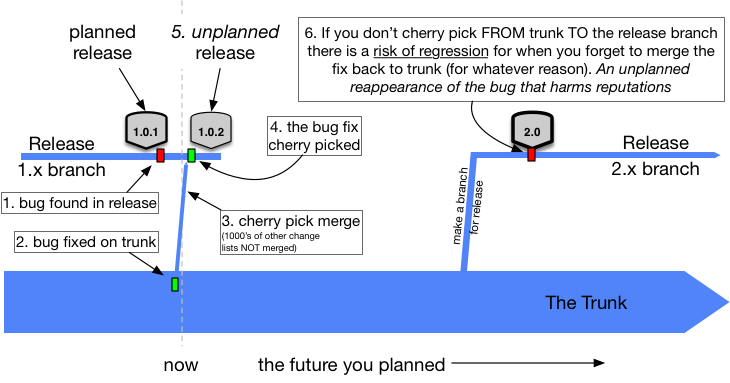
git merge --no-ff) to merge changes from release or staging branches into the main or master branch. If you are following trunk based development (recommended) it actually advises against merging from release into master. Instead it recommends to cherry-pick commits from master into release. See this. - Use
git merge --squash --ff-onlyto merge feature branches into the main or master branch
Feature branches are branches that are meant to be temporary and meant to be deleted after PR is committed. In contrast, the release or staging branches are meant to be permanent. git merge --no-ff will allow you to restore a release branch if you delete it accidentally because it preserves the complete history of changes. We’ll see how later on in the article.
The --squash option does not preserve the history of changes and will not show any branching when you try to visualize the commit history. This is what is referred to as a non-merge commit e.g., in this article. It is also known equivalently as a fast-forward commit.

Its called non-merge commit because if you visualize the commit history, you won’t see two branches (the feature and master) merging into one. What you will see is a linear commit history as-if the developer had made changes on top of master without checking out a feature branch. This is what we want when developers are merging their changes as part of normal workflow. We are not interested in seeing all the tiny work-in-progress changes they did. Nor are we interested in keeping a track of when they cut out their feature branch from master.
The --ff-only will not allow a developer to merge their changes (i.e., PR will not succeed) unless they are synced to the latest code in the master. To sync to the latest the developer should:
- checkout master branch (
git checkout master) - run
git pullto pull latest code from the remote master - switch to their feature brach (
git checkout feature-branch) - run
git rebase masteron their feature branch - resolve conflicts. More on how to do this later.
- Test the new changes!
They should then push their changes back to remote PR branch and now the --ff-only option will not complain when we try to merge the PR.
NEVER run git rebase on the master or other protected branches. See the golden rule of rebasing.
The golden rule of
git rebaseis to never use it on public branches.
This is because git rebase rewrites the commit history and you most likely don’t want that for your master or release branches. Its always the feature branches that are supposed to be rebased on top of the master branch.
If you are using GitHub, the default merge option on GitHub corresponds to git merge --no-ff.
For completeness, we next cover what git merge --ff does – this is the default option btw if you don’t specify any options to git merge. If the source branch has not diverged from the master (target) – meaning if you start at the HEAD of the source branch and trace the parent commit recursively, you will arrive at a commit that is the HEAD of the target branch – then, --ff creates a non-merge commit similar to --squash. If you visualize the history, you won’t see any branching and merging; you will see a linear commit log. The difference from --squash is that you will see all the commits. If the source branch has diverged from the master then --ff will create a merge commit. So --ff means fast-forward if you can. Diverge equivalently means that developer is not synced to the latest – that is the language I used earlier to explain the effect of --ff-only.
The --no-ff option will always create a merge commit even if source and target have not diverged. I feel this is useful when merging release branches onto master.
Below is what a merge commit looks like when source and target have not diverged. This is what you will get if you used the --no-ff option to do the merge:
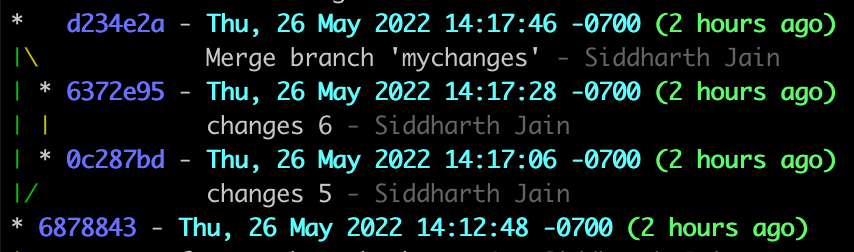
With the --ff option this would appear as a linear series of commits in git history without any branching and merging as-if the developer had made their changes directly on top of master. The HEAD on master is just fast-forwarded to latest commit:
* 6372e95 - Thu, 26 May 2022 14:17:28 -0700 (58 seconds ago)
|           changes 6 - Siddharth Jain
* 0c287bd - Thu, 26 May 2022 14:17:06 -0700 (80 seconds ago)
|            changes 5 - Siddharth Jain
* 6878843 - Thu, 26 May 2022 14:12:48 -0700 (6 minutes ago)
This is what a divergence looks like:
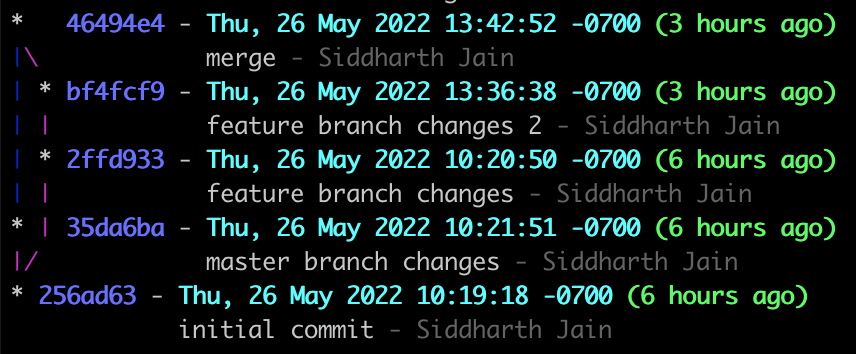
The developer checked out their feature branch off of commit 256ad63 but then while they were working on their feature branch, someone committed 35da6ba onto master. Now the developer is no longer synced to the latest. The --ff-only option will not let commit bf4fcf9 be merged onto master. You will get something like below if you try it:
$ git merge mychanges --ff-only
fatal: Not possible to fast-forward, aborting.
Pop Quiz: What is parent of commit 46494e4? Is it bf4fcf9 or 35da6ba or undefined? You can get the answer by running:
$ git checkout HEAD~1
Previous HEAD position was 46494e4 merge
HEAD is now at 35da6ba master branch changes
So the parent commit is the commit that happened in that branch. The convention is somewhat arbitrary – in Jon Loeliger’s book he says:
A merge commit has more than one parent
Version Control with Git, p. 76
This is a good working definition of a merge commit. A merge commit preserves the history and you can restore state bf4fcf9 even after you delete the feature branch by running git checkout bf4fcf9. Your HEAD will be in a detached state.
Below then is summary of options that can be used with git merge:
--ff(Default): Make a fast-forward (aka non-merge) commit if source branch has not diverged from target, otherwise make a merge commit--no-ff: Do not make a fast-forward commit even if source branch has not diverged from target--ff-only: Reject the merge if the source branch has diverged from the target branch. If not, a fast-forward commit will be made. You will never run into merge conflicts with this option.--squash: consolidate all commits – the changes – in the source branch into one and make a fast-forward commit. Same as--squash --ff.--squash --ff-only: Reject the merge if source branch has diverged from the target. Otherwise, do the same thing as--squashwould do.
Note that --squash --no-ff is not a valid combination since --squash by its nature always results in a fast-forward commit.
Fast-forward commit = Non-merge commit = Linear commit history = Single parent = it looks as if developer made changes directly on top of the target branch
Above discussion only covers a subset of git merge. Refer to online documentation for list of all the options.
Resolving conflicts while rebasing or merging
Follow following steps to resolve conflicts while rebasing:
- run
git mergetool - if you are using the
.gitconfigin this article, VS Code should open (or otherwise whatever mergetool you have configured should open) - Use VS Code to resolve conflicts
- save the file(s)
- close the file(s)
- switch back to terminal
- run
git rebase --continue - One of two things will happen:
- all conflicts are resolved and VS Code opens again with a commit message. edit the message as appropriate, save and close the file. The rebase should show as completed on the terminal (command-line).
- the rebase process will encounter more conflicts in which case you repeat the above steps all over again
The commands to resolve conflicts while merging are a little different. You have to run git commit instead of git rebase --continue. E.g.:
ᐅ  git status
On branch master
All conflicts fixed but you are still merging.
  (use "git commit" to conclude merge)

Changes to be committed:
	modified:   foo.txt
Trunk Based Development
This is the development workflow recommended and followed by many companies these days. There is a main branch and optional release branches. Chances are you are doing it without realizing it. In this model:
- You may cut out release branches or release directly from master e.g., if you have daily releases – the team can tag the main trunk at end of the day as a release commit
- The main branch is assumed to always be stable, without issues, and ready to deploy
- Feature flags are used to contain code that is under progress and should not be turned on until complete
- Instead of merging bugfixes from release into master, it recommends committing the bugfix into master and then cherry picking into release. This rule for Trunk Based Development remains difficult to accept, even within teams practicing everything else about Trunk-Based Development (ref).
if you are fixing bugs on the release branch and merging them down to the trunk you are doing it wrong…Bugs should be reproduced and fixed on the trunk, and then cherry-picked to the release branch
See this to make sure you are not doing it wrong.
Below flowchart shows visually the code check-in process:
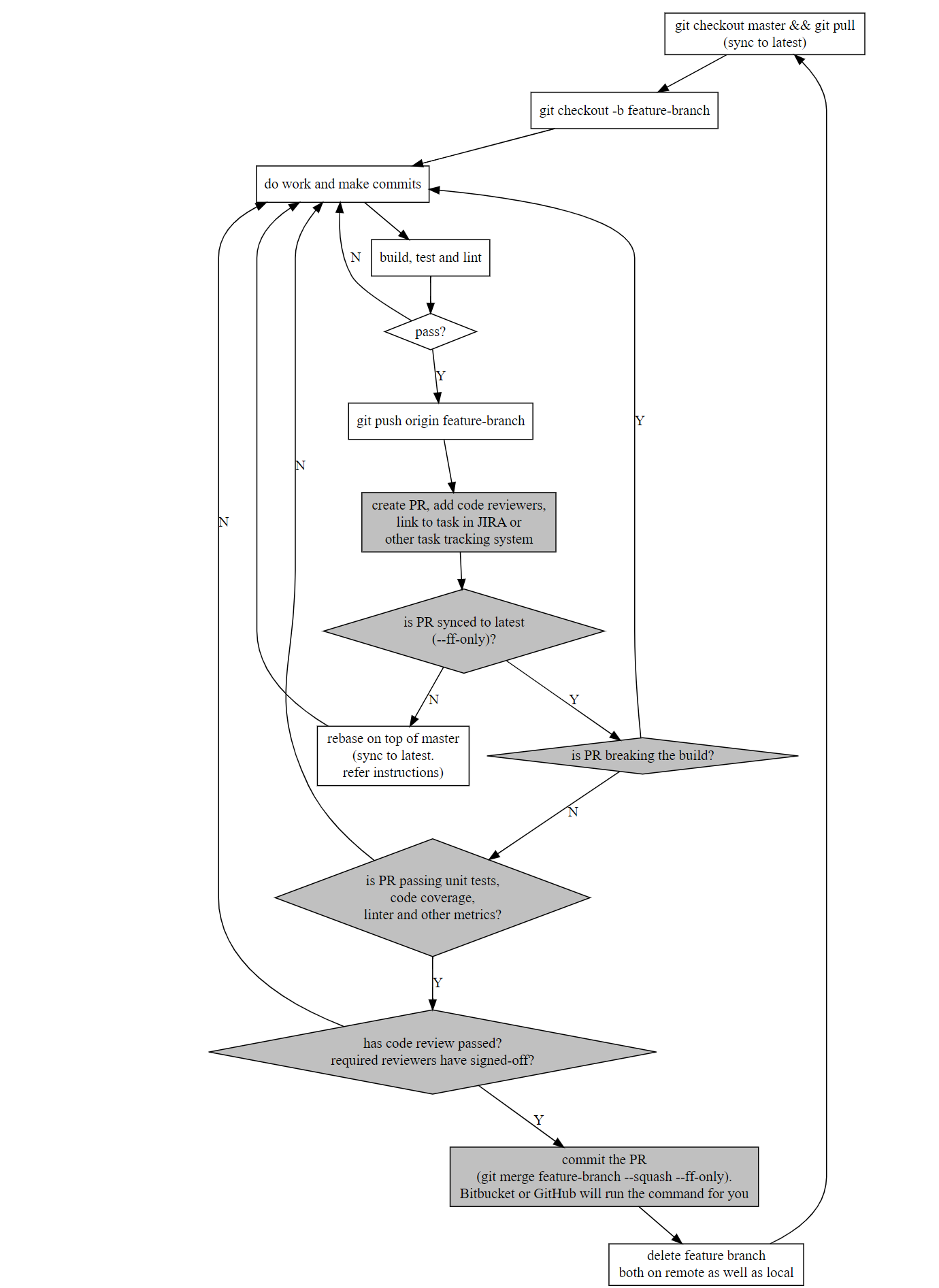
Compare it to this if you like. You should continuously check whether you are rebased on top of latest. To keep the flowchart simple, I haven’t added additional boxes to reflect that. E.g., even before pushing your changes to remote branch, its a good idea to check if you are synced to the latest. Source code of the flowchart can be found here.
 siddharth's space