
TL;DR:
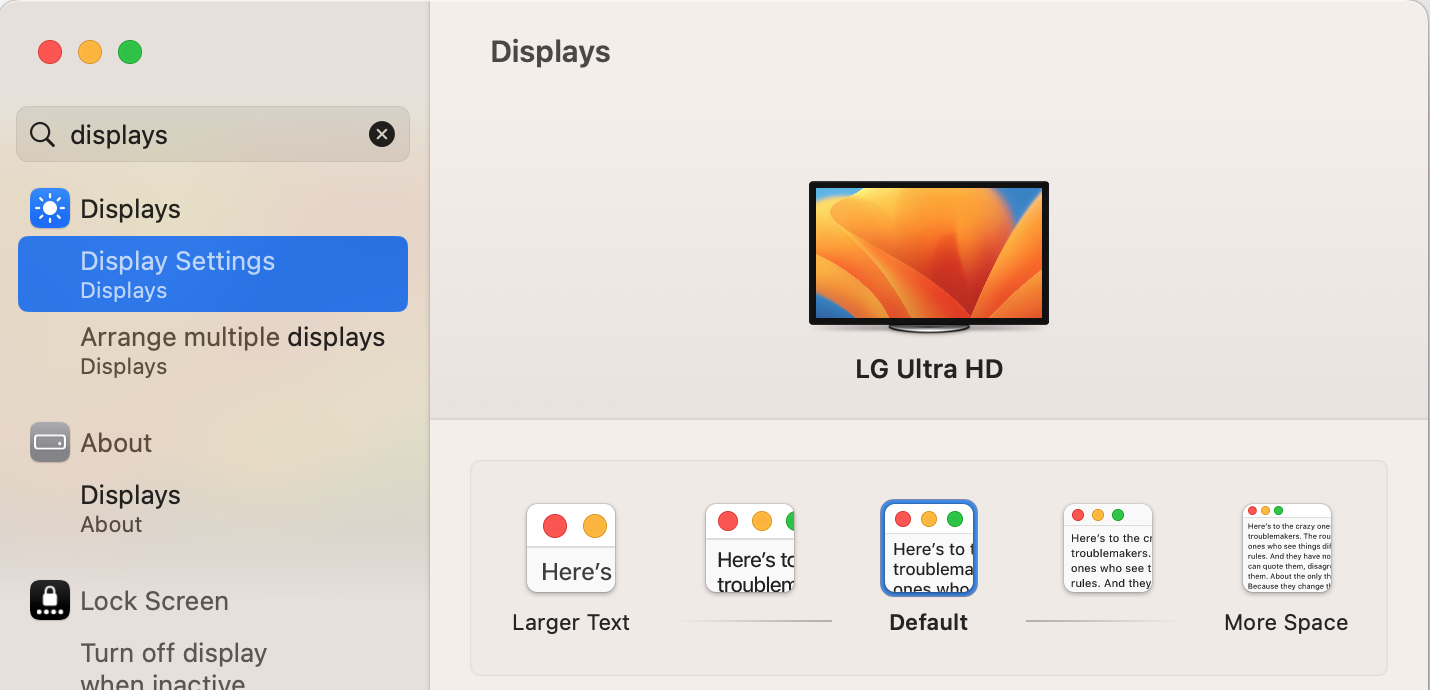
- Goto (System -> Settings -> Displays) and change the display size (see illustration below):
- There is no need to buy a 4K monitor if you will be running it at QHD resolution. This is my opinion and I haven’t done real-world test.
- For a 27-29″ display recommend using QHD resolution (~110PPI). 4K is sure to make the text too tiny to read and will strain your eyes.
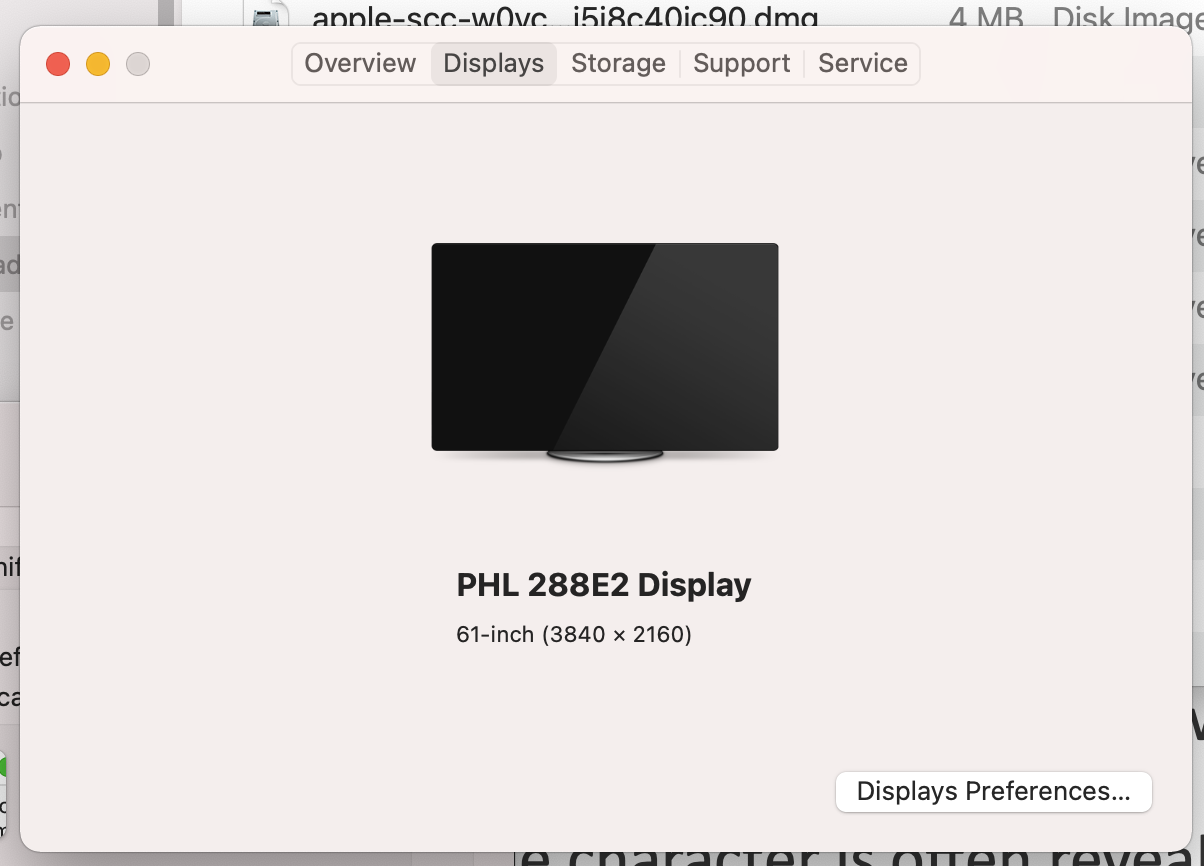
In my case it happened because even though I had a 28″ display (Philips 28 E line), Mac OS (Big Sur specifically on my Macbook Pro) was detecting it as a 61″ display and so naturally everything was 2x smaller than what it ought to be. First I tried to make everything bigger by changing the preferences of individual apps but this is not a good solution. The solution is to go to System Preferences -> Display and choose Scaled instead of the recommended default for display setting. The scaled setting allows you to select a non-native resolution. The downside of selecting a non-native resolution is that the GPU has to do more work and if not done properly, scaling can lead to a blurry display but its the best workaround for this problem (Mac issues are hard to fix). In case of my Philips 28″ display, scaling it to 2560×1440 resolution did not lead to any blurring or performance issues.
Mac OS frequently detects wrong display size of external monitors. For example, see below threads:
- https://discussions.apple.com/thread/250441319
- https://discussions.apple.com/thread/252119953. But I still can’t stop the shrinking down that happens on the Philips, my “61-inch” 27-inch monitor
- https://discussions.apple.com/thread/8485634
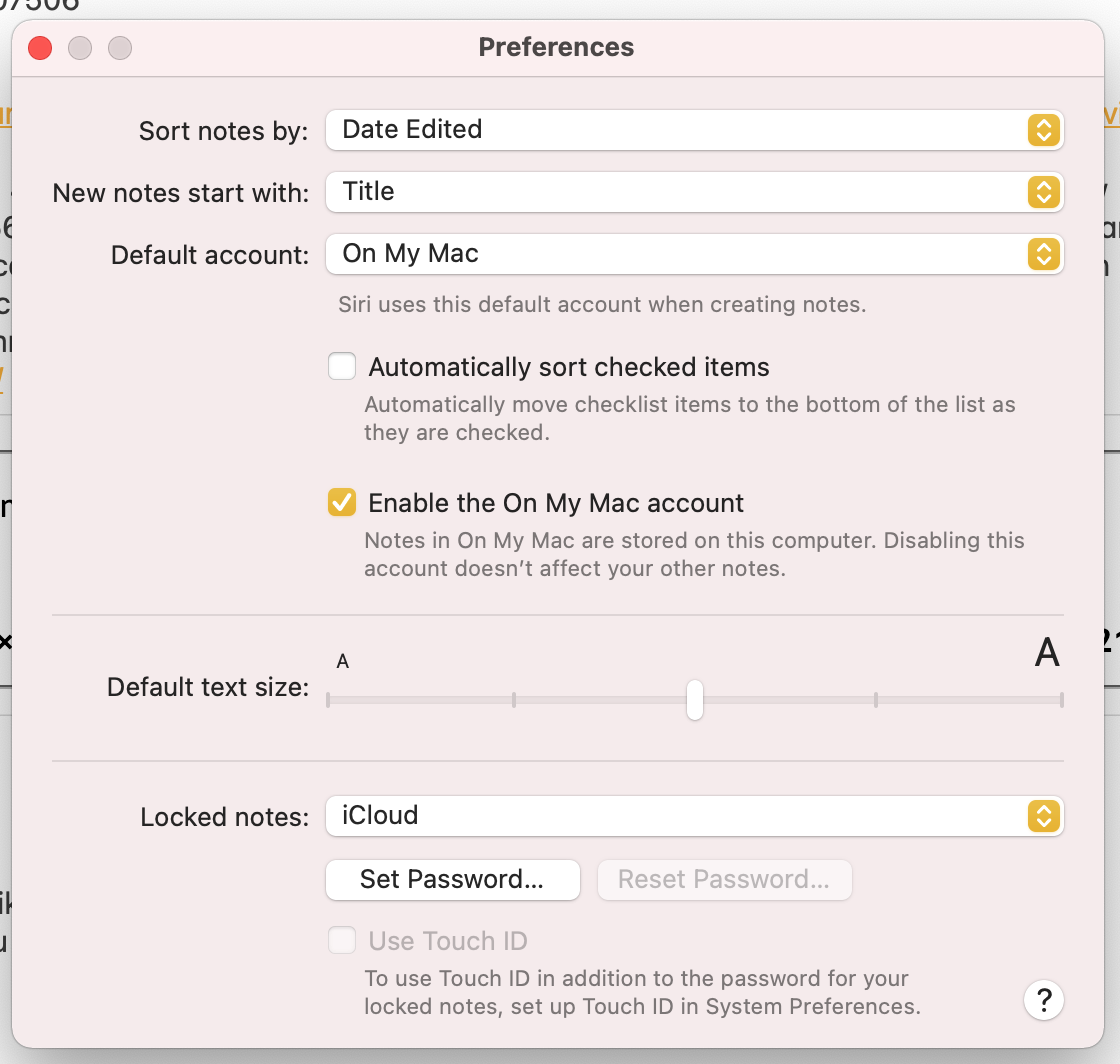
Unfortunately there is no solution to be found since its an OS problem. When this happens everything on the screen will appear much smaller than it should (most commonly the OS detects a bigger screen size that what it actually is). Now if you are a “principled” person who likes to do everything “by the book”, the gut instinct is not to choose the Scaled display setting since a warning is displayed: Using a scaled resolution may affect performance. This is the path I chose initially and I started mucking around with text size settings in various apps to make the text larger.
For VS Code:

For Notes:
For Outlook:
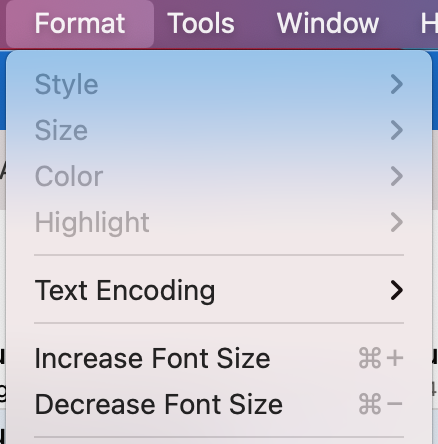
Its a pain to tweak the settings of every app and even then there are some things you just can’t change like the size of the nav bar in Google chrome or adjust size in Webex. So don’t do this.
Instead just choose scaled display setting to make everything uniformly bigger on the screen. The trick here is that choosing the scaled setting frequently leads to a blurry (foggy) display so you have to be careful and choose a scaling that does not lead to blurry display. In my case I chose a 2560 x 1440 resolution and it worked well. The native resolution was 4K (3840 x 2160).
Pro tip: Open System Preferences from the Apple menu in Mac OS X. Click on “Display” Under the ‘Display’ tab, hold down the OPTION / ALT key while you press on the ‘Scaled’ button alongside Resolution to reveal all available screen resolution options for the display.
I also verified that when I used a monitor whose display size was correctly detected, then the native 4K (3840 x 2160) resolution gave desired display size on the screen.
Below is a Philips 28″ display that is incorrectly detected as a 61″ display and is the cause of the problem (everything appears 2x smaller than what it should):
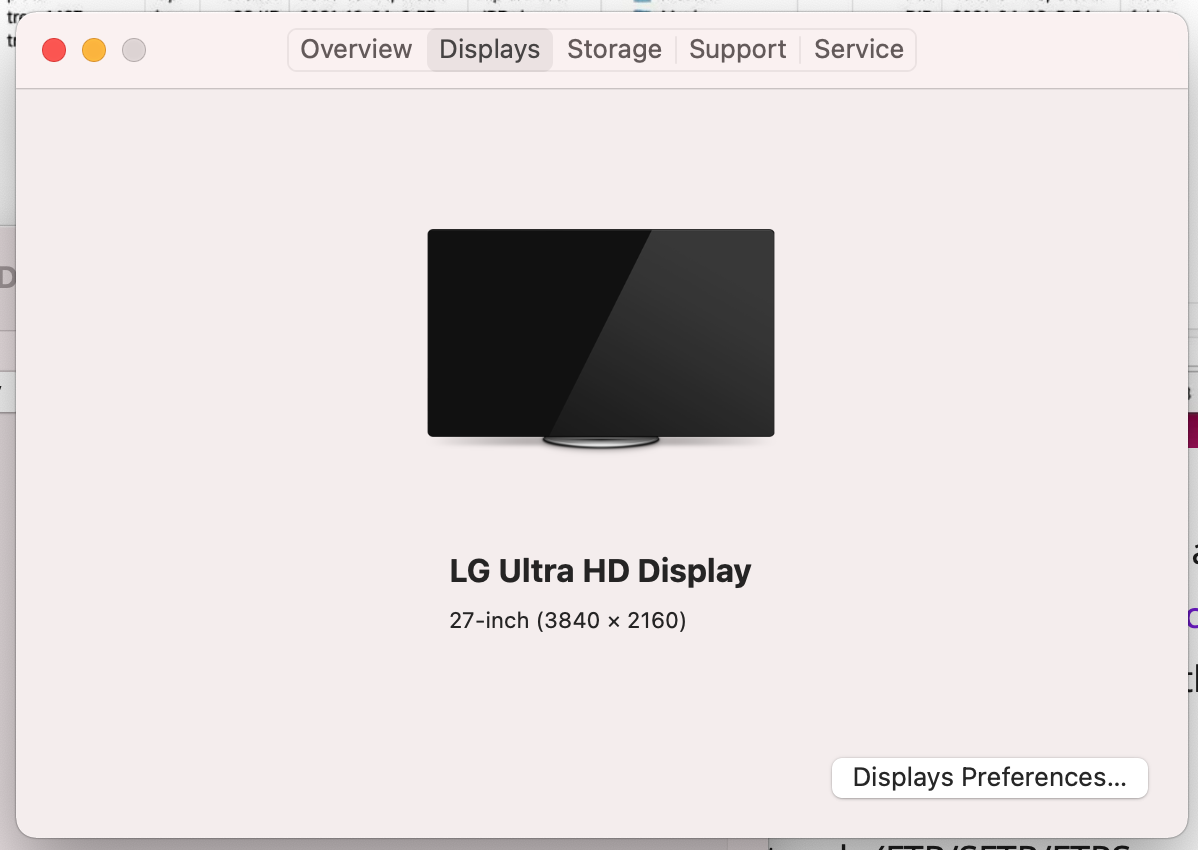
In case of a LG monitor, the OS detected the display size correctly:
Never had this problem with Windows btw!
How to fix large display in Mac?
UPDATE: It actually doesn’t here. With my LG display I couldn’t help but feel that everything was too big now – its the reverse of the problem with my Philips 28″. I have default for display selected which should run the monitor at its native resolution:
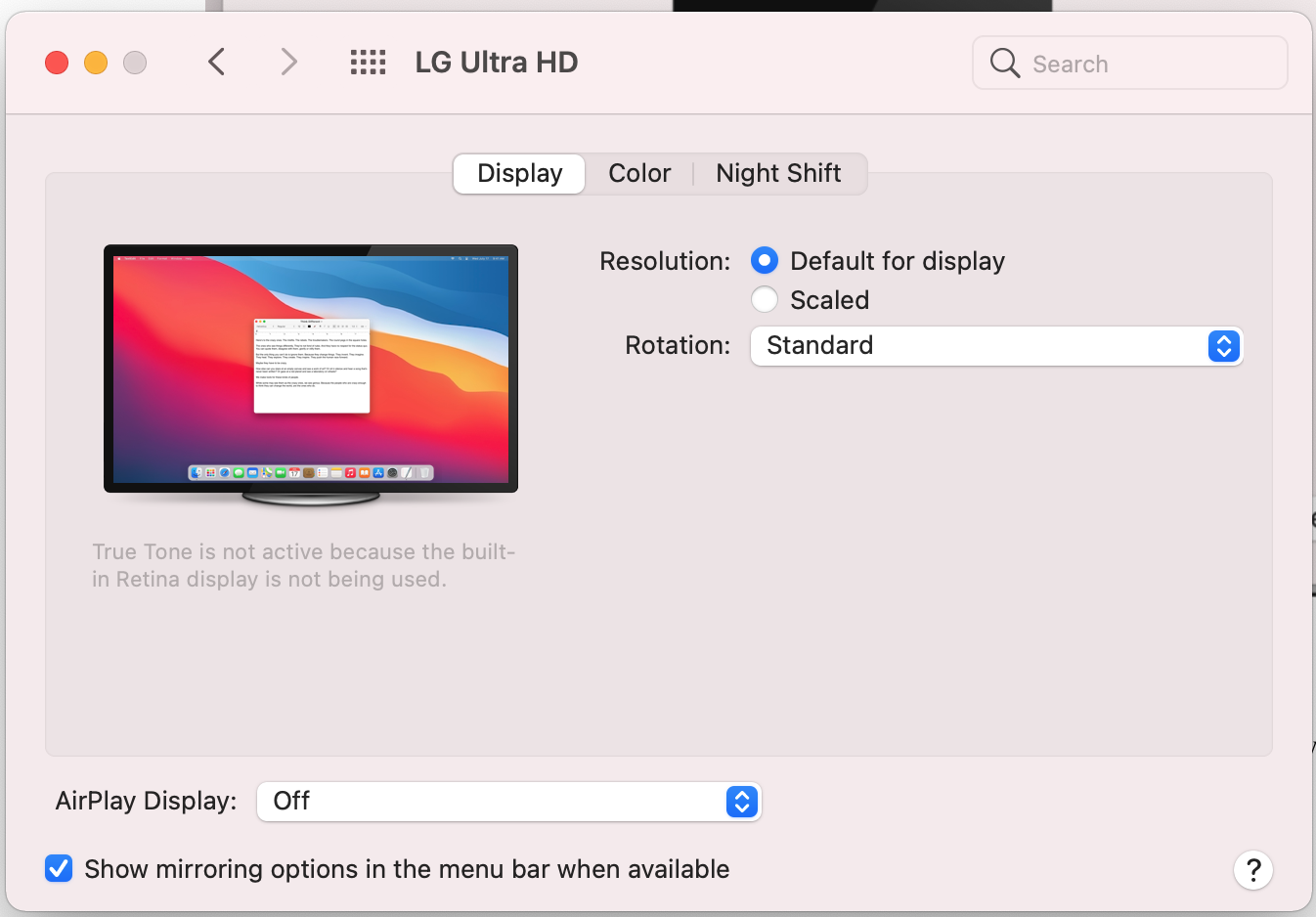
and the native resolution of the monitor is 4K, but lo and behold what do I get when I run this:
 % osascript -e 'tell application "Finder" to get bounds of window of desktop'
0, 0, 1920, 1080
and this confirms the feeling that everything really is too big now. screenresolution gives same result:
% screenresolution get
2022-03-18 12:45:04.590 screenresolution[4202:24991] starting screenresolution argv=screenresolution get
2022-03-18 12:45:04.604 screenresolution[4202:24991] Display 0: 1920x1080x32@30
What can I say, with a Mac you just can’t win! you have to give up! I went from a tiny display to a large display. I tried setting the display to 4K using screenresolution program but it made everything tiny and setting it to 2560×1440 led to blurring. Good luck Mac users getting your display to work!
Still want to keep reading? Re: this post – don’t read too much into it. First, when he recommends 90-110 PPI resolution (which I agree with), understand what it means: it means the PPI calculated using the physical (actual) # of pixels in the display. For a 4K monitor with 27″ diagonal and 16:9 aspect ratio this will be 163 PPI and is constant – it does not change depending on what resolution you are running the display. We can thus see its an overkill to buy a 4K monitor with 27″ display.
Note the part where he says: “I tried all three of the modes, and from a sharpness point of view, I was quite happy with all of them. However, the sharpness advantage of the pixel doubled mode is definitely perceivable.” The pixel doubled mode is 1920×1080. He is running 4K display at half of the resolution and there’s actually nothing wrong with it – he admits it gives him the best looking text. The PPI of this display still remains 163 when we use the actual physical # of pixels in the calculation.
Then he claims: “However, 27 Inch 4K used at scaled 2560×1440 will be a lot sharper than 27 Inch QHD monitor when used with MacOS.” I doubt it. If that’s the case, then why do people complain about blurry display when using scaled? He says “For example, in order to display 2560×1440 scaled resolution on a 4K display, MacOs first renders a 5120×2880 canvas, then downscales it to 4K.” I am not sure. I would guess more accurately the applications render a 2560×1440 bitmap which is then upsampled by the graphics card to 3840×2160 when it is sent to the monitor. But then its MacOS so we never know…
Finally I got the LG monitor to work at 2560×1440 without blurring.
from this page: The ideal size for a monitor mainly depends on its resolution and how far you’re sitting from the screen. Overall, most people find that 1920×1080 shouldn’t be used on anything larger than 25-inch; 1440p is ideal for 27-inch,
 siddharth's space