
Background & Assumptions: This post assumes you know how to install an azagent on your VM and applies to self-hosted agents on Linux VMs. See this for how to install a self-hosted agent on Linux VM. The azagent runs as a service on your Linux VM and pulls jobs from Azure Devops to be executed. Note the agent pulls jobs. Jobs are not pushed to the agent. The diagnostic logs of the agent can be found under the _diag directory of the agent’s root folder. Further the post is specific to a pipeline that used to work, but will stop running after a while. If your pipeline does not work to begin with, chances are you have some other problem with it. E.g., this bit me when I wrote my first pipeline and took quite a while to figure out.
From time to time your azure pipeline will get stuck in Queued state and eventually time out after 1 hour.

You can try checking the logs but they will be empty. You can try stopping and restarting the agent, but no luck. If you contact Microsoft you will get a canned response from them saying this happens because you exceeded your quota of max parallel jobs which is BS. And they will pester you for logs and ask to re-run the pipeline with System.Debug:true. You do all this but they still can’t resolve the issue. The reality is that they are clueless. The only known fix (AFAIK) to this problem is to uninstall and re-install the agent again. You can do this by following below steps (all run as root user):
Step 1: Stop the agent
#-> ./svc.sh stop
Step 2: Uninstall the agent
#-> ./svc.sh uninstall
Step 3: Obtain a new PAT you will need to unregister the agent
You obtain this from following screen that you must have used earlier when you setup your agent. (Tip: Removing the agent from Azure Devops UI will not work. You will get errors in next step.)
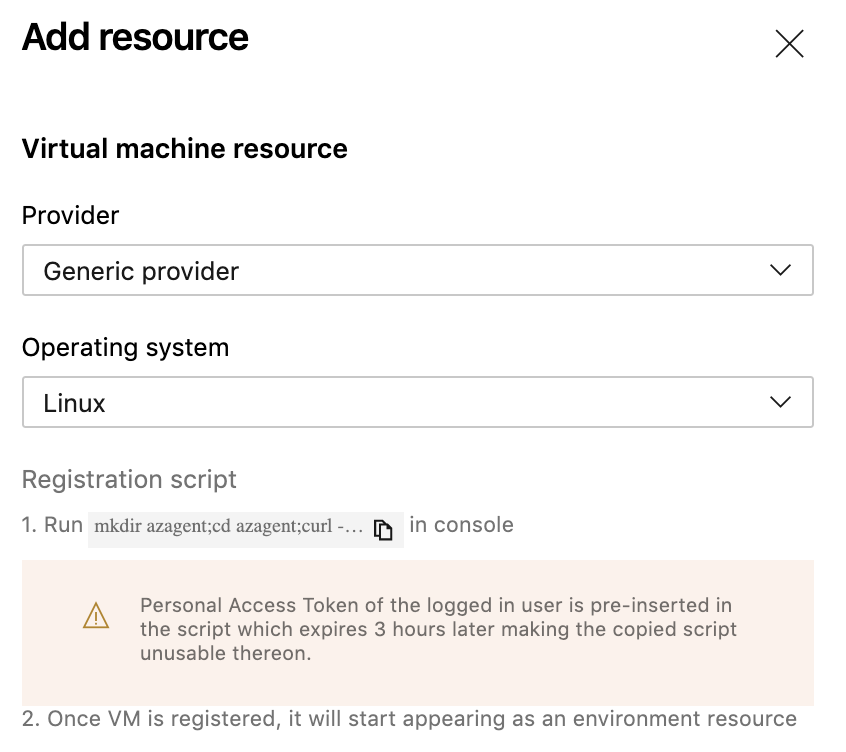
Step 4: Unregister the agent
#-> AGENT_ALLOW_RUNASROOT=true ./config.sh remove
You will be prompted for PAT. Provide it the PAT from previous step.
Step 5: Reinstall the agent
Do this using the same steps that you followed to provision your original agent. The commands should look like following where you substitute PAT and other strings as appropriate
AGENT_ALLOW_RUNASROOT=true ./config.sh --environment --environmentname "QA" --acceptteeeula --agent $HOSTNAME --url https://dev.azure.com/myorganization/ --work _work --projectname 'myproject' --auth PAT --token mytoken --runasservice
./svc.sh install
./svc.sh start
Now the pipeline should work again.
 siddharth's space