
Getting Bash IDE to work in VS Code:
Installing bash-language-server in non global mode:
https://github.com/mads-hartmann/bash-language-server/issues/97

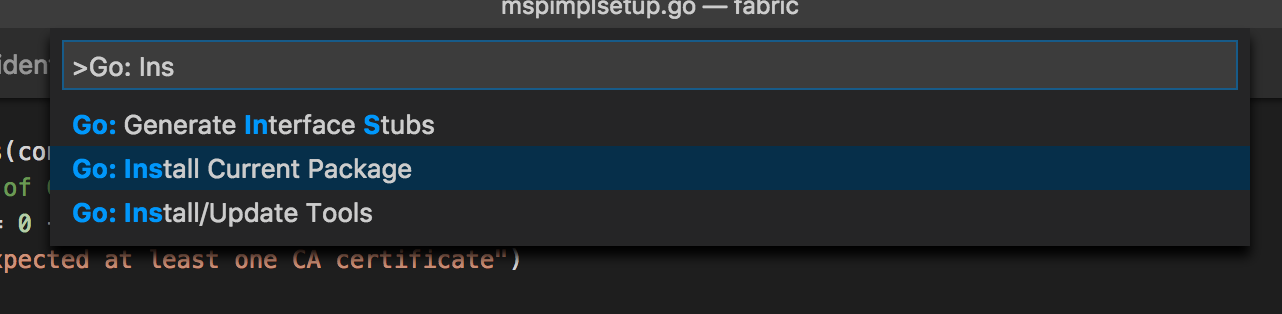
To Install/Update Go Tools View -> Command Palette (Cmd+Shift+P)
To open a file quickly, Cmd+P
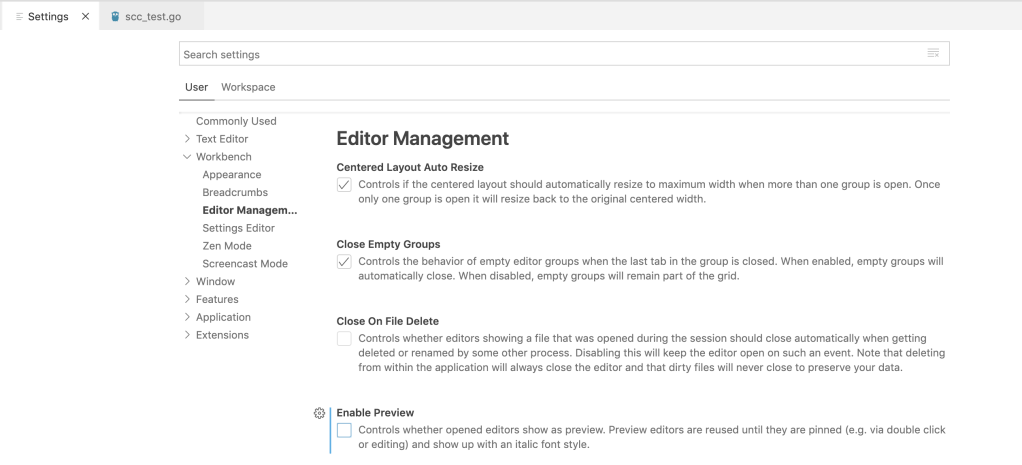
By default Cmd+P will open file in the current TAB and whatever file is currently open will be closed as a result. This is extremely annoying. Disable the Enable Preview checkbox to tell VS Code to open file in a new TAB.
Remove annoying tslint errors/warnings in vs code
Launching VS Code from command line
To enable launching VS Code from the command line, run following in Command Palette (Cmd+Shift+P on Mac)
Shell Command: Install 'Code' command in path

You should then be able run following on the terminal:
$ code --help
Setting VS Code as the mergetool and difftool for Git
You can use VS Code as the mergetool and difftool of choice for Git by editing ~/.gitconfig file and adding following lines to it (source):
[core]
  editor = code --wait
[diff]
  tool = vscode
[difftool "vscode"]
  cmd = code --wait --diff $LOCAL $REMOTE
[merge]
  tool = vscode
[mergetool "vscode"]
  cmd = code --wait $MERGED
Using VS Code as the mergetool
Once you have setup VS Code as the mergetool, you will see below as example wherever there are merge conflicts
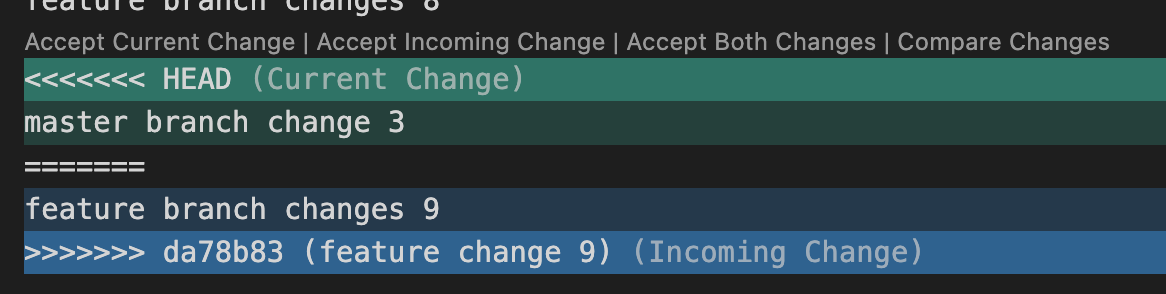
If you like to see the changes side-by-side click on Compare Changes. That should give you a result like below:
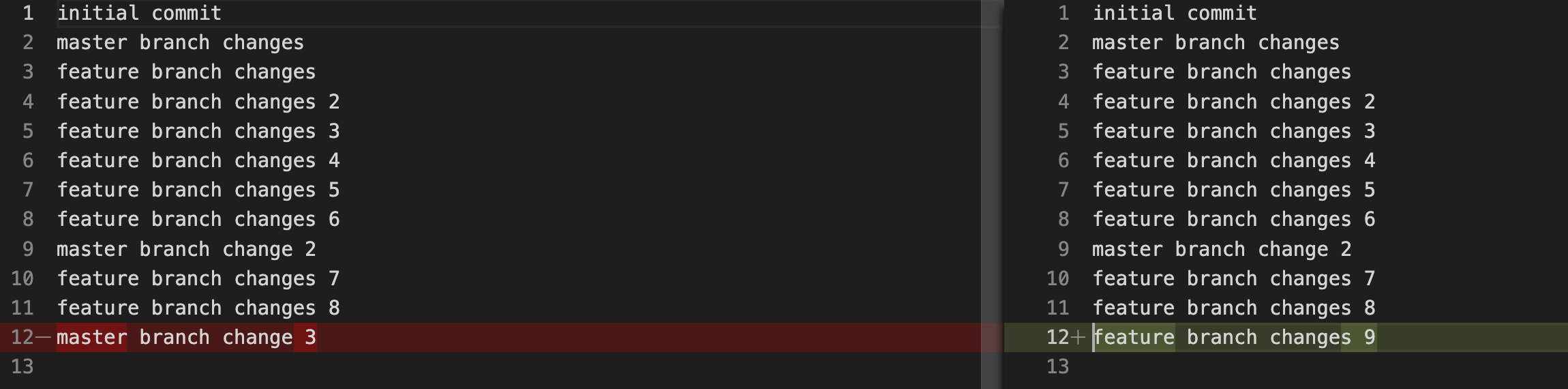
If you made a selection (accept current change, accept incoming change, accept both changes) and want to go back simply use Edit -> Undo (Cmd+Z)
Further reading: https://stackoverflow.com/questions/38216541/visual-studio-code-how-to-resolve-merge-conflicts-with-git
Open settings.json
Open the command pallete (Cmd+Shift+P on Mac) and from there:

or just open it like this:
$ vi $HOME/Library/Application\ Support/Code/User/settings.json
e.g., you can set
"[markdown]": {
    "editor.formatOnSave": false,
  }
to disable format on save for markdown files. ref
How to see what extensions you have installed?
$ ls ~/.vscode/extensions                                      ⬡ 20.3.1 [±master ✓▴]
donjayamanne.githistory-0.6.20
esbenp.prettier-vscode-10.1.0
extensions.json
ms-dotnettools.csharp-2.0.328-darwin-arm64
ms-dotnettools.vscode-dotnet-runtime-1.6.0
ms-python.python-2023.14.0
ms-python.vscode-pylance-2023.8.20
ms-vscode.cmake-tools-1.15.31
ms-vscode.cpptools-1.16.3-darwin-arm64
ms-vscode.cpptools-extension-pack-1.3.0
ms-vscode.cpptools-themes-2.0.0
patbenatar.advanced-new-file-1.2.2
redhat.java-1.21.0-darwin-arm64
svelte.svelte-vscode-107.9.0
twxs.cmake-0.0.17
visualstudioexptteam.intellicode-api-usage-examples-0.2.7
visualstudioexptteam.vscodeintellicode-1.2.30
vscjava.vscode-java-debug-0.53.0
vscjava.vscode-java-dependency-0.23.1
vscjava.vscode-java-pack-0.25.13
vscjava.vscode-java-test-0.39.1
vscjava.vscode-maven-0.42.0
| Extension | Purpose |
| donjayamanne.githistory-0.6.20 | this extension is good for diffing commits. VS Code has a built-in Timeline viewer but it can only be used to diff a file not a commit. |
What are all the folders where VS Code stores files on Mac?
From this answer:
rm -fr ~/Library/Preferences/com.microsoft.VSCode.helper.plist
rm -fr ~/Library/Preferences/com.microsoft.VSCode.plist
rm -fr ~/Library/Caches/com.microsoft.VSCode
rm -fr ~/Library/Caches/com.microsoft.VSCode.ShipIt/
rm -fr ~/Library/Application\ Support/Code/
rm -fr ~/Library/Saved\ Application\ State/com.microsoft.VSCode.savedState/
rm -fr ~/.vscode/
also see this.
Troubleshooting Keyboard Shortcuts
TL;DR: If keyboard shortcuts don’t work as expected check if Karabiner Elements is causing the problem. N/A if you are not using Karabiner Elements.
I ran into a problem when F12 was no longer taking me to definition. It was instead increasing the volume. Turns out the problem had to do with Karabiner Elements. In my Karabiner Elements I had following configuration:
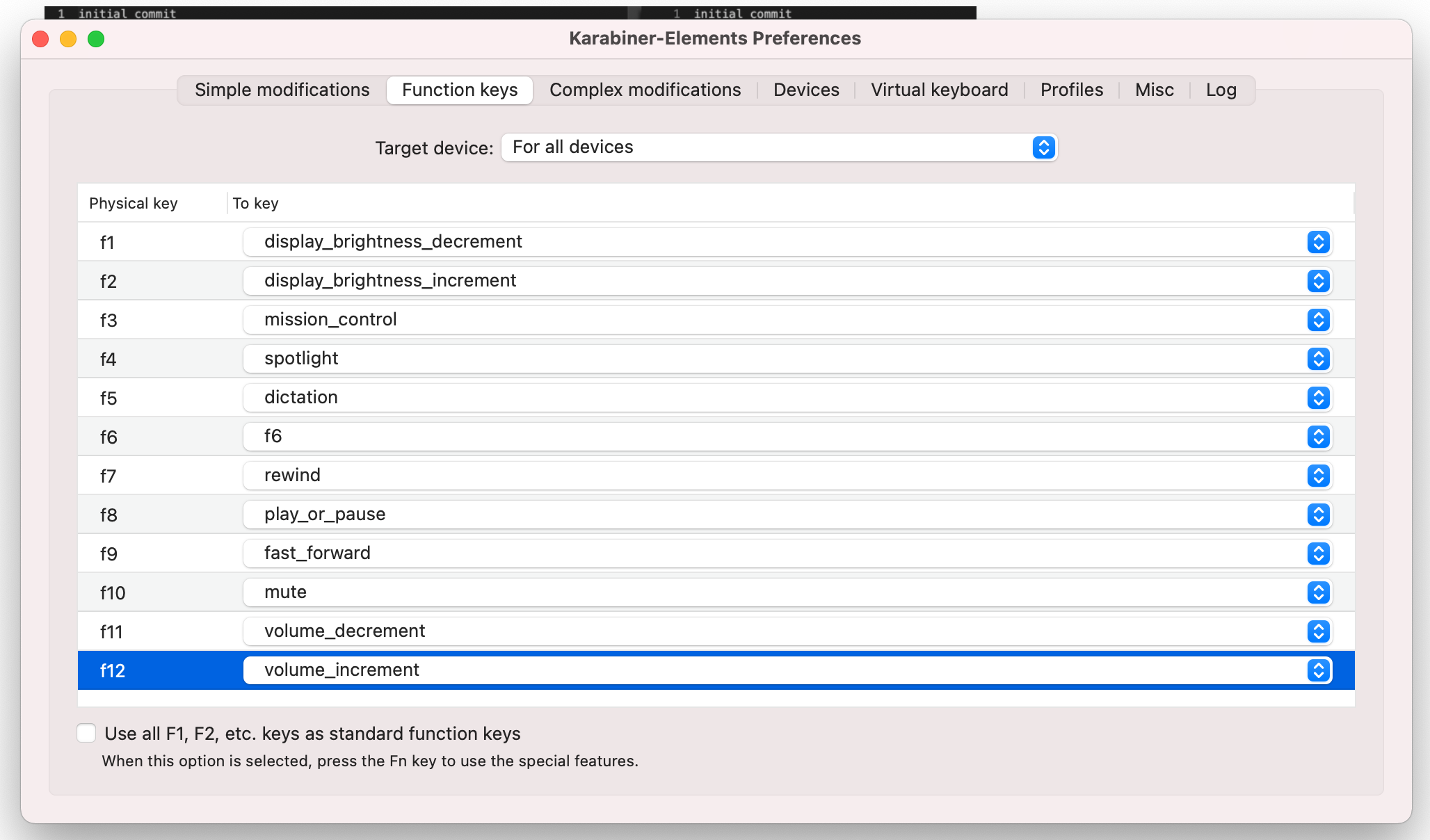
The fix is simply to check the box that says Use all F1, F2, etc. keys as standard function keys.
Another day I found F11 was not working as expected in VS Code. Its supposed to step inside a function while debugging. The culprit was the setting in System Preferences -> Keyboard -> Shortcuts -> Mission Control which was causing F11 to show the desktop.
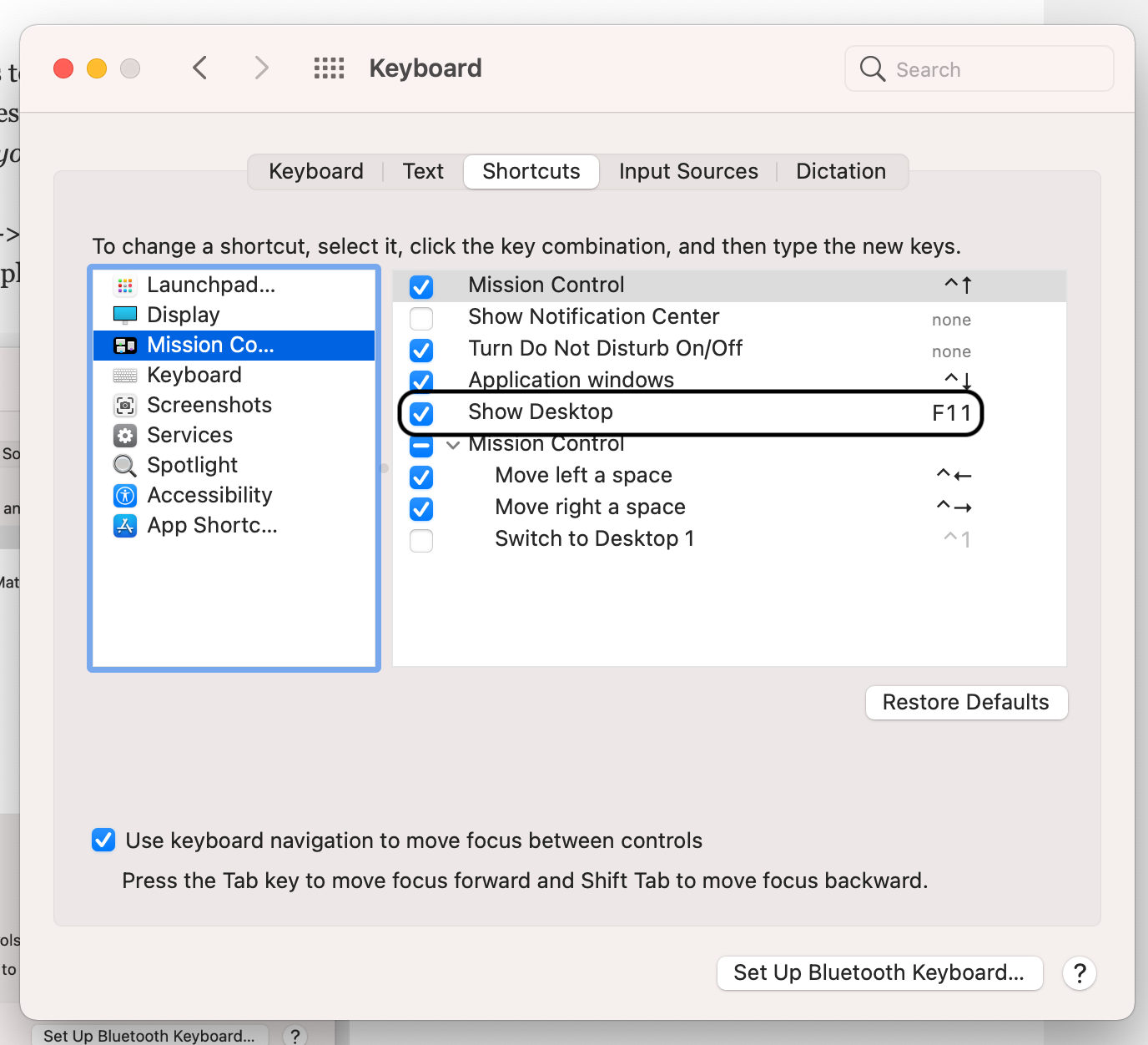
After unchecking the box F11 started working in VS Code.
10 Tips on Java Programming with VS Code
- Install following extensions:
- Extension Pack for Java by Microsoft. It contains 6 extensions:
- Language Support for Java
- Debugger for Java
- Test Runner for Java
- Maven for Java
- Project Manager for Java
- IntelliCode
- Extension Pack for Java by Microsoft. It contains 6 extensions:
- In launch.json here is how you specify environment variables (
env), program arguments (args) and arguments to JVM (vmArgs) and additional dependencies to the classpath besides those inpom.xml:
{
            "type": "java",
            "name": "Launch App",
            "request": "launch",
            "mainClass": "com.example.App",
            "projectName": "rsync",
            "vmArgs": "-enableassertions -javaagent:/Users/xxx/.m2/repository/com/example/instrumentation/1.0-SNAPSHOT/instrumentation-1.0-SNAPSHOT.jar",
            "args": "rsync.properties",
            "env": {
                "GOOGLE_APPLICATION_CREDENTIALS": "$HOME/keyfiles/gcp.json"
            },
"classPaths": [
                "$Auto",                "/Users/me/.m2/repository/com/oracle/database/jdbc/ojdbc10/19.15.0.0.1/ojdbc10-19.15.0.0.1.jar"
            ]
        }
- Error: Build path specifies execution environment JavaSE-10. There are no JREs installed in the workspace that are strictly compatible.
editpom.xmland add<java.version>in that. After that do not forget to clean Java language server workspace (Cmd+Shift+P -> Java: clean) and restart vs code. Shift+Alt+Owill add required imports and also remove unused imports. Alt is also known as Option key.Shift+Alt+Fwill format the file. You can open Settings and turn onFormat on Save. this way VS Code will auto-format the code when its saved.- Frequently when you try to debug (
F5) you will get an error complaining the build failed even though there is nothing wrong with the code and you can execute it from the command line. VS Code also asks do you want to proceed even if the build failed. Error occurred while building workspace. The solution is to clean the workspace directory. See this. - enable java assertions. see this
- To create a new project use
Cmd+Shift+P: Maven: Create Maven project.
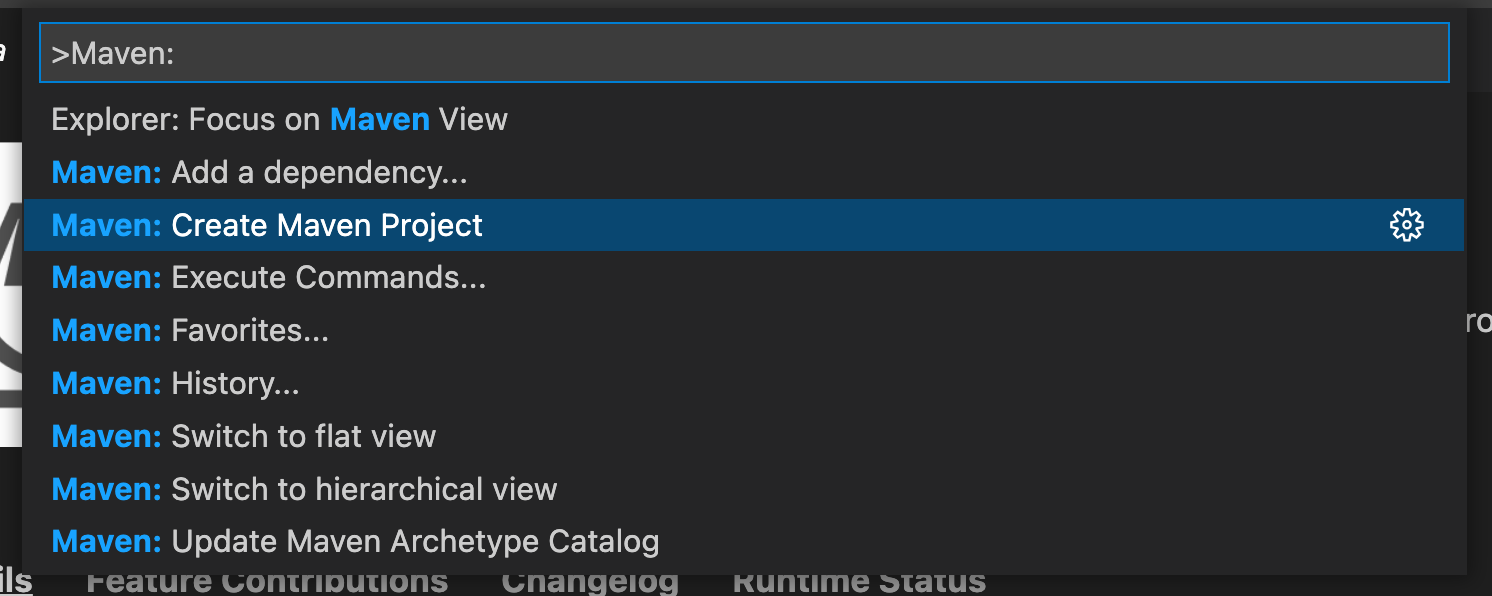
As of this writing the generated pom.xml does not contain <java.version>. Add it as best practice as shown below. I have also changed JDK version to 11.
<properties>
    <project.build.sourceEncoding>UTF-8</project.build.sourceEncoding>
    <maven.compiler.source>11</maven.compiler.source>
    <maven.compiler.target>11</maven.compiler.target>
<java.version>11</java.version>
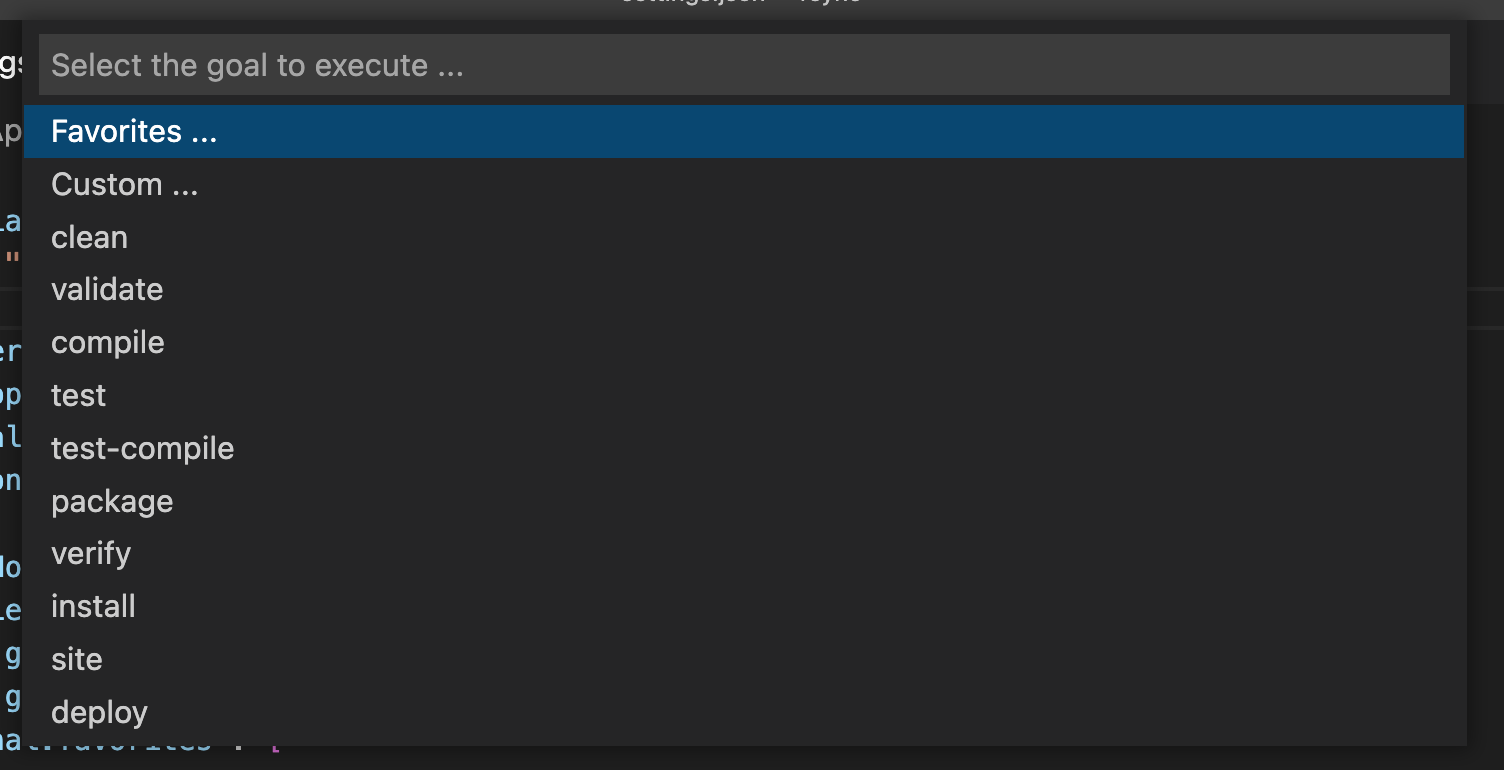
- You can add new Maven commands by editing
~/Library/Application Support/Code/User/settings.json. E.g.:
"maven.terminal.favorites": [
        {
            "alias": "full-build without tests",
            "command": "clean package -DskipTests"
        }
    ]
then you can use this command as follows
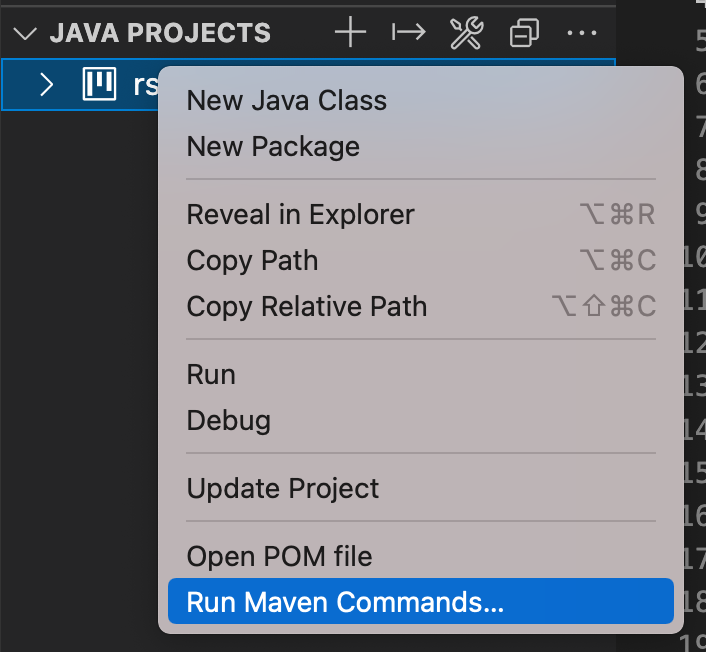

The Maven extension executes Maven by opening a terminal session and then calling Maven in that session. Maven requires the JAVA_HOME environment variable to be set. Maven will also look for other variables such as MAVEN_OPTS. If you prefer not to set those variables permanently you can configure them, or any other environment variable, in settings:
{
    "maven.terminal.customEnv": [
        {
            "environmentVariable": "MAVEN_OPTS",               // variable name
            "value": "-Xms1024m -Xmx4096m"                     // value
        },
        {
            "environmentVariable": "JAVA_HOME",                // variable name
            "value": "C:\\Program Files\\Java\\jdk-9.0.4"      // value
        }
    ]
}
- To find a library goto mvnrepository.com. once the library is found there:
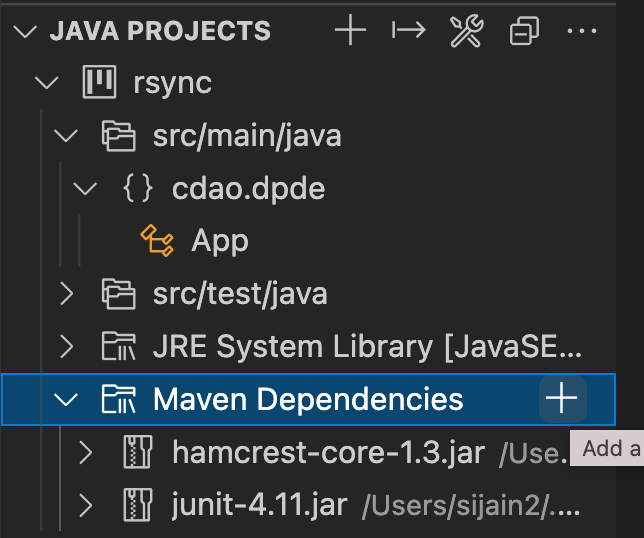

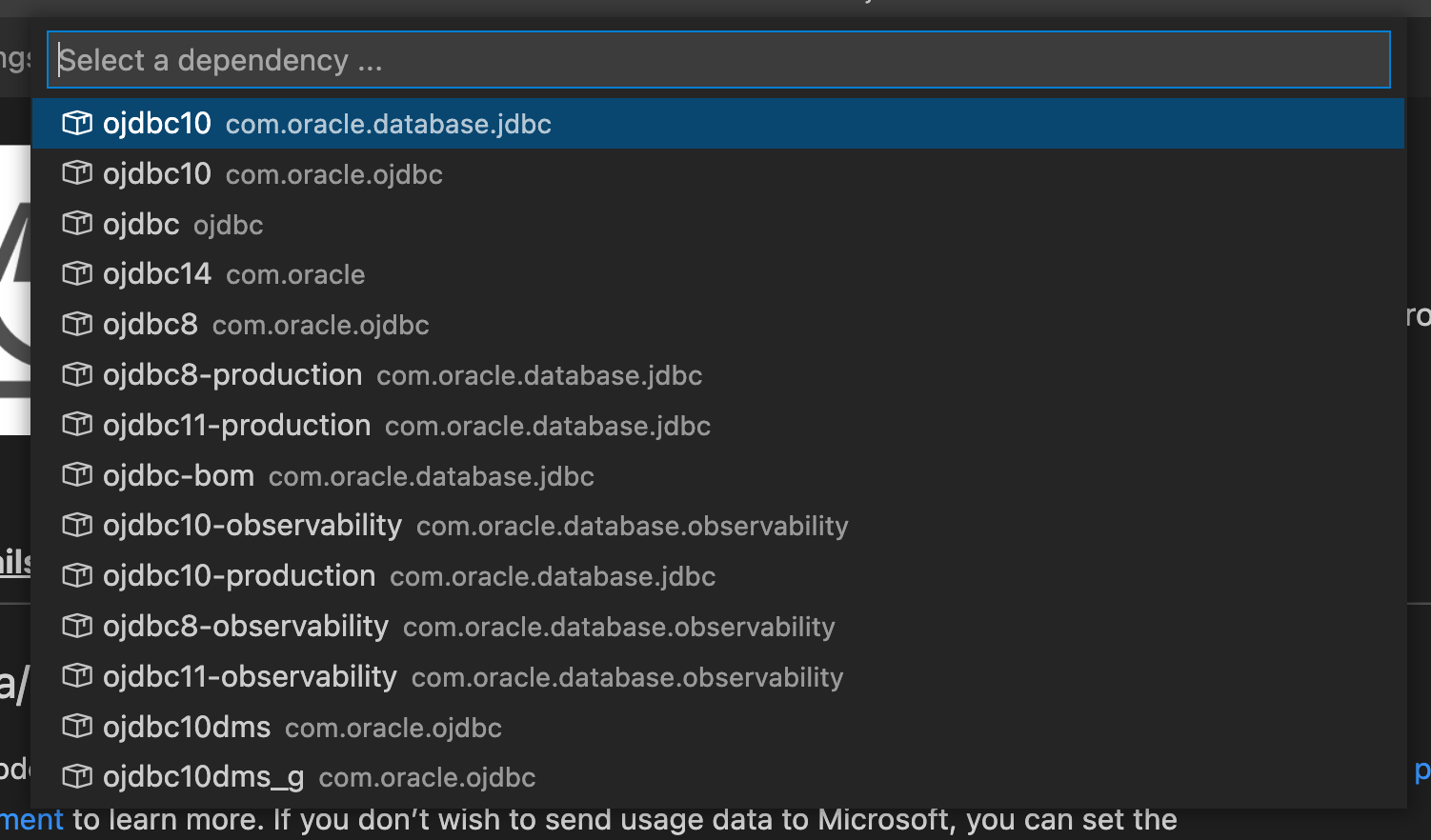
this will add dependency to pom.xml
- Another useful shortcut is
Source Action...to automatically generate constructors and getters / setters. Watch the videos here.
- You can add additional dependencies to your classpath in addition to those in
pom.xmlby editinglaunch.jsonlike so:
"classPaths": [
                "$Auto",                "/Users/me/.m2/repository/com/oracle/database/jdbc/ojdbc10/19.15.0.0.1/ojdbc10-19.15.0.0.1.jar"
            ]
$Auto adds all dependencies defined in pom.xml. Refer this. Warning: Using environment variables (e.g., using $HOME instead of /Users/me) in the classpath did not work for me. See this.
- Note that VS Code does not use the
javaccompiler to compile your code. Instead it uses a compiler that ships with Eclipse JDT (java development tools). more on it here.
VSCode Python Tips (Problems and Solutions)
Not able to step into the code of a library or stick breakpoints in library code
Make sure that justMyCode is set to false in launch.json. Example:
{
    "name": "Python: Current File",
    "type": "python",
    "request": "launch",
    "program": "${file}",
    "console": "integratedTerminal",
    "justMyCode": false
}
How to use a pre-existing virtual environment?
This is done using the steps described here – Select and activate an environment.
If you would prefer to select a specific environment, use the Python: Select Interpreter command from the Command Palette (⇧⌘P).
How to clean up VS Code junk?
After 1 year of intense coding, VS Code accumulated 4GB of data. don’t know what is essential and what is junk:
>>> du -sh ~/Library/Application\ Support/Code/                                                                                                                                                                                                 15:25.12 Wed May 15 2024 >>>
4.3G	/Users/xxx/Library/Application Support/Code/
3GB is in
>>> du -sh ~/Library/Application\ Support/Code/User/workspaceStorage                                                                                                                                                                            15:25.41 Wed May 15 2024 >>>
2.9G	/Users/xxx/Library/Application Support/Code/User/workspaceStorage
it seems that this folder can be deleted [1]. Also you can delete ~/Library/Application\ Support/Code/CachedData and ~/Library/Application\ Support/Code/Cache folders. After deleting these folders the size went down to less than a GB.
>> rm -rf /Users/xxx/Library/Application\ Support/Code/User/workspaceStorage
>> rm -rf /Users/xxx/Library/Application\ Support/Code/Cache
>> rm -rf /Users/xxx/Library/Application\ Support/Code/CachedData
>>> du -sh /Users/xxx/Library/Application\ Support/Code                                                                                                                                                                                    16:10.18 Wed May 15 2024 >>>
862M /Users/xxx/Library/Application Support/Code siddharth's space