
Keyboard Shortcuts
I verified these shortcuts with my microsoft keyboard.
Cmd + right arrow (or Ctrl+E) moves you to the end of the sentence and the
Cmd + left arrow (or Ctrl+A) moves you to the start.
Fn + Left/Right arrows = Home & End
Cmd + Up/Down Keys = Home & End
Cmd + T will launch new terminal
Cmd + space will launch spotlight
Cmd + Tab to move between apps
Cmd + shift + ~ to switch between windows of an app
Ctrl + down key is also useful to switch between windows of an app
Cmd+F Find
Cmd + Backspace to move something to trash. Cmd + Delete did not work.
Pressing the Space bar on a web page will scroll down one page, and Shift-Space will scroll up one page.
iTerm2
iterm2 is better alternative to the Terminal.app that comes with Mac
on the bash prompt you will need to use
CTRL + A to jump to beginning
CTRL + E to jump to end
Cmd + D will split terminal horizontally
Cmd + Shift + D will undo the split
Cmd + Shift + [ to move to previous tab in terminal
Cmd + Shift + ] to move to next tab in terminal
ctrl-w to delete the last word
ctrl-u to delete all the way back to the start of the line
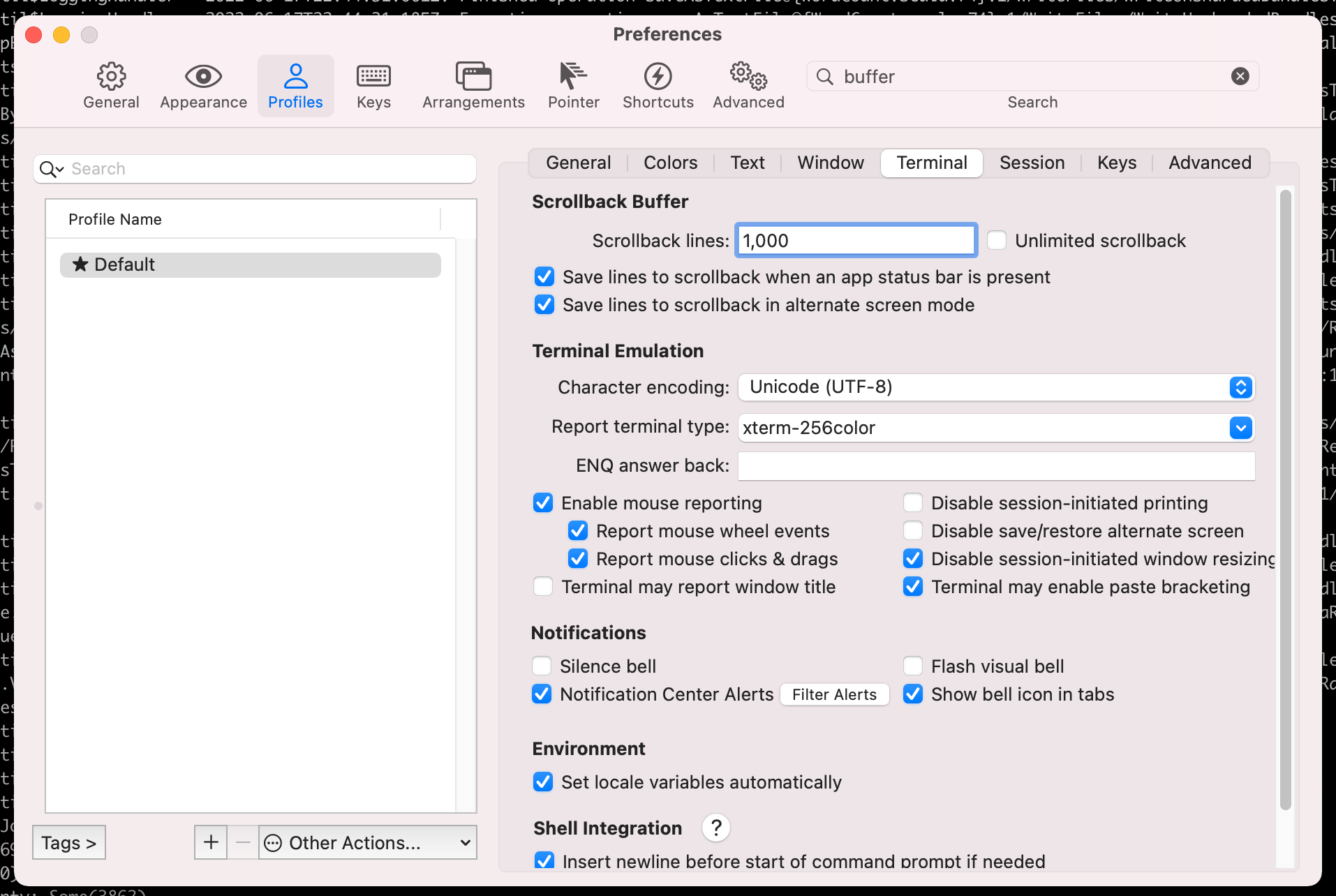
You can change the scrollback buffer for iterm2 (the number of lines it keeps in memory) from following screen
Terminal.app
Terminal app shortcuts:
https://support.apple.com/lt-lt/guide/terminal/trmlshtcts/2.11/mac/11.0
To change keyboard bindings of the Terminal app that comes with Mac OS see https://stackoverflow.com/a/39359692/147530
https://github.com/electrovir/karabiner-elements-terminal-navigation
to take screenshot in mac use following:
Cmd + Shift + 4, then you will see your cursor turns into capture mode And drag the area you want to capture It will create a screenshot image in your Desktop ~/Desktop
Cmd + Ctrl + Shift + 4 If you want it to be in clipboard,
Cmd + Ctrl + Shift + 3 will let you simply capture entire screen
F11 takes you to the desktop. The setting is defined under System Preferences -> Keyboard -> Shortcuts -> Mission Control:
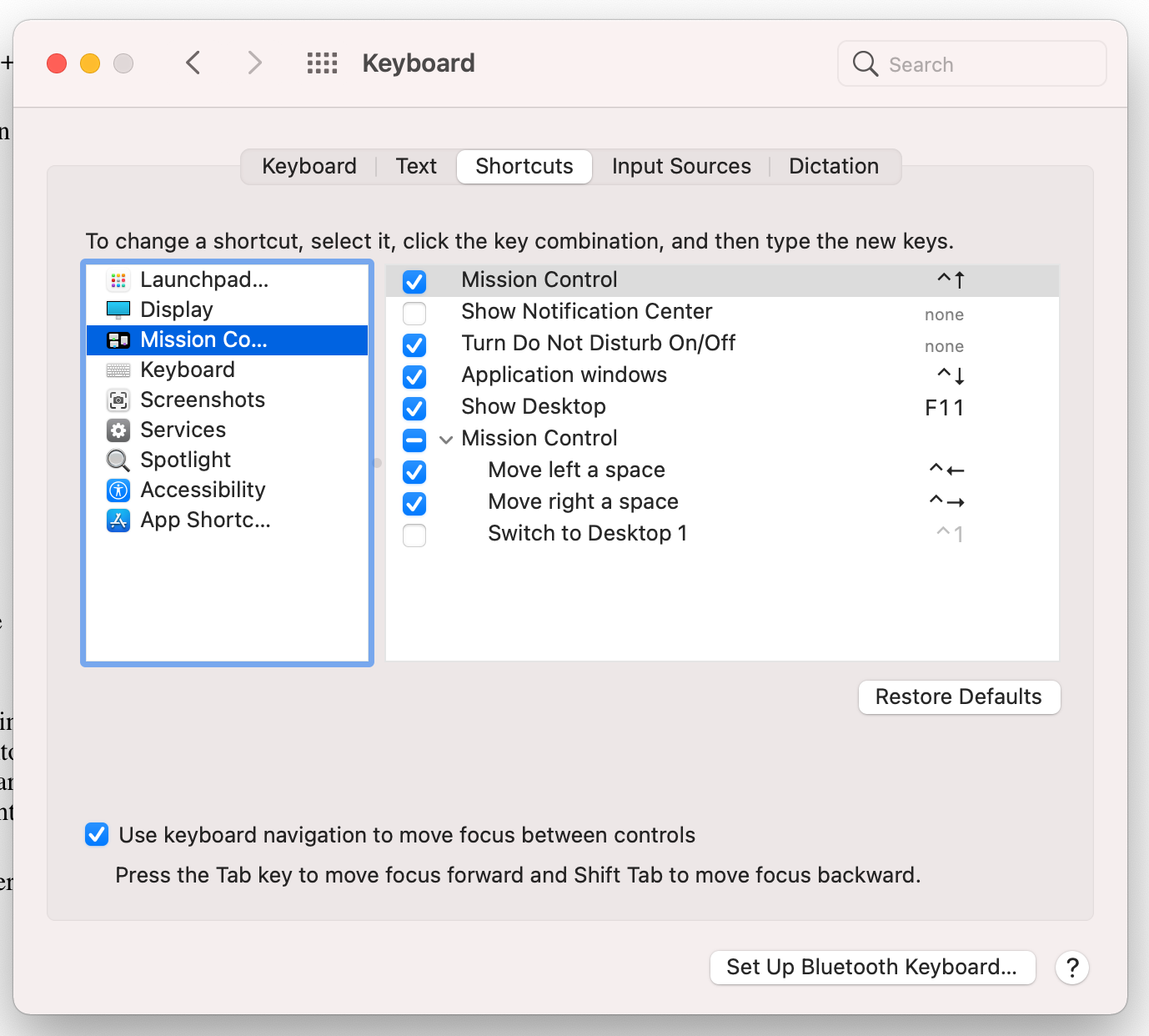
I would recommend turning it off if you are using VS Code because in VS Code F11 is supposed to step inside a function while debugging.
Chrome
Cmd + R to refresh
Cmd + Alt + Left arrow = opens the tab immediately to the left of current one
Cmd + Alt + Right arrow = opens the tab immediately to the right of current one
Cmd + W to close a tab
Cmd + Shift + W to close a window
Cmd + N to open a new window
Cmd + T to open a new tab
Cmd + L to jump to address bar
Cmd + Left arrow open previous page
Cmd + Right arrow open next page
Cmd + q quit chrome
Cmd+Option+j open javascript console
Cmd+d add to bookmarks
Cmd+Shift+delete open clear browsing data window
Cmd + Option + Up / Down cycles focus between address bar, tab bar, bookmarks bar and page content.
also see System Preferences > Keyboard > Keyboard Shortcuts to customise
In Finder, Press Command-Shift-G to navigate to a folder
To get full path of a file, press Cmd+C in finder and then Cmd+V in terminal
By default Mac Finder does not show hidden files. To show all the hidden files run following commands from terminal
$ defaults write com.apple.finder AppleShowAllFiles TRUE
$ killall Finder
More:
Change scroll direction of mouse
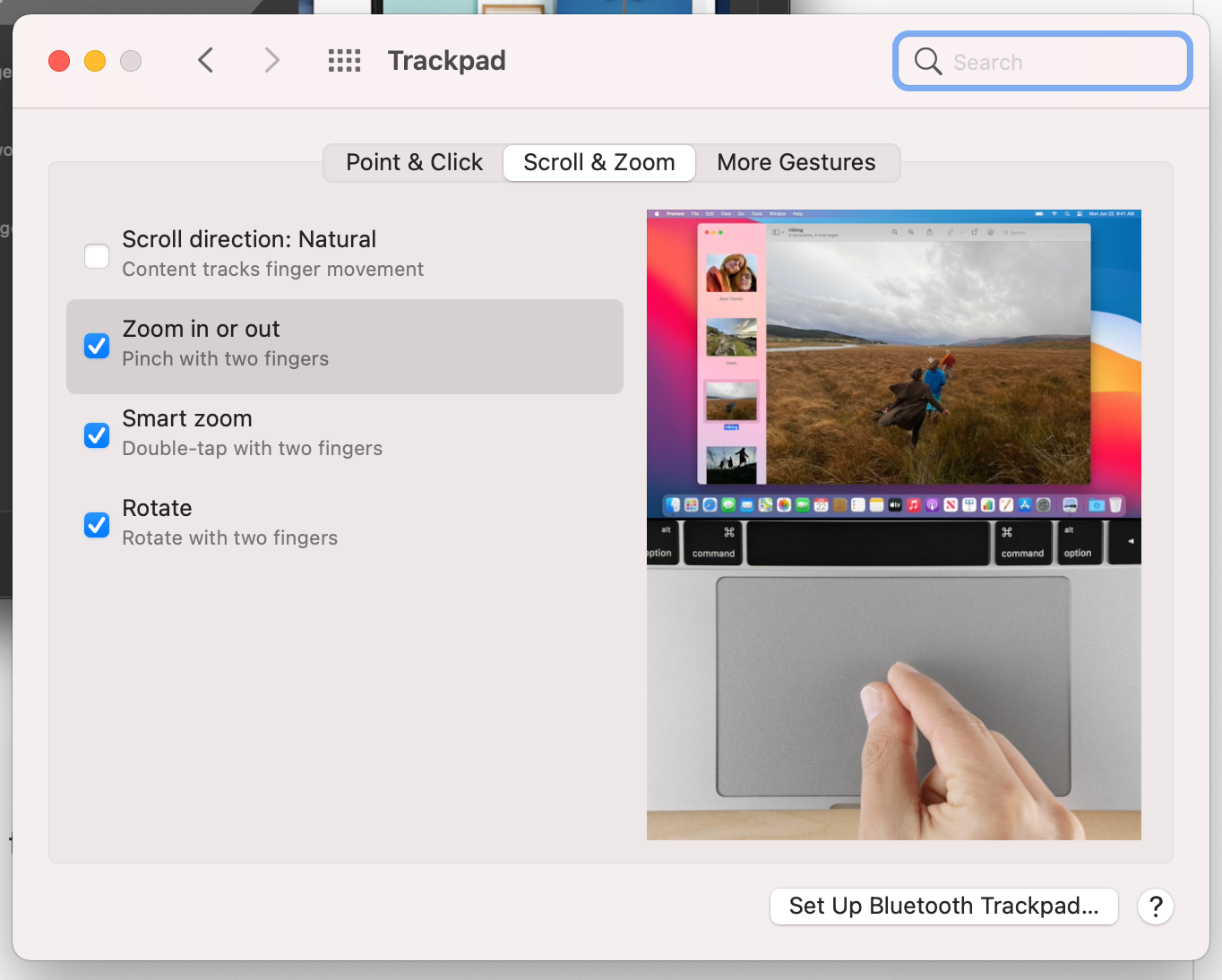
The direction in which the mouse scrolls in Mac is opposite to that in Windows. To change it I first tried System Preferences -> Mouse but Mac did not detect my USB mouse even though it worked (see this). I found a workaround here. The solution is to change it from System Preferences -> Trackpad. Uncheck Scroll direction: Natural to make the scroll direction consistent with Windows if that’s the way you like it.
Outlook
Cmd+R reply
Cmd+Shift+R reply all
Cmd+N new email (or appointment)
Cmd+1 Mail view
Cmd+2 calendar view
Cmd+3 contacts view
Cmd+4 tasks view
Cmd+Return send
Cmd+E add attachment
Cmd+J forward
Ctrl + [ display previous message
Ctrl + ] display next message
Cmd+0 open contacts search
GOOGLE DOCS
CMD+K add hyperlink in google docs
doc.new in chrome to open new doc
Cmd+Shift+8 for bullet points
Cmd+Shift+7 for ordered list
Cmd+Shift+. to increase the size
GMAIL
Cmd+] to indent
Cmd+[ to unindent
r to reply
Using the same set of shortcuts across Windows and Mac
If you use both Windows and Mac, an obvious desire is to use the same set of shortcuts across the two. E.g., on Windows we have to use Ctrl+C to copy whereas in Mac we have to use Cmd+C. Wouldn’t it be nice if we could use the same shortcut across the two? I haven’t done much research on how to customize Windows keyboard bindings but it seems like its possible to customize the keyboard bindings on the Mac. There are many things you can do:
- You can remap the keys so that Ctrl maps to Cmd and Cmd maps to Ctrl. Now if you press Ctrl+C on Mac its as though you pressed Cmd+C. I would advise against this because now everywhere you read Ctrl, you have to mentally replace it with Cmd and vice-versa.
- Under System Preferences -> Keyboard -> Shortcuts -> App Shortcuts you can change the keyboard bindings to do a task. Example is shown below where I have changed the keyboard bindings to do Copy, Paste etc.
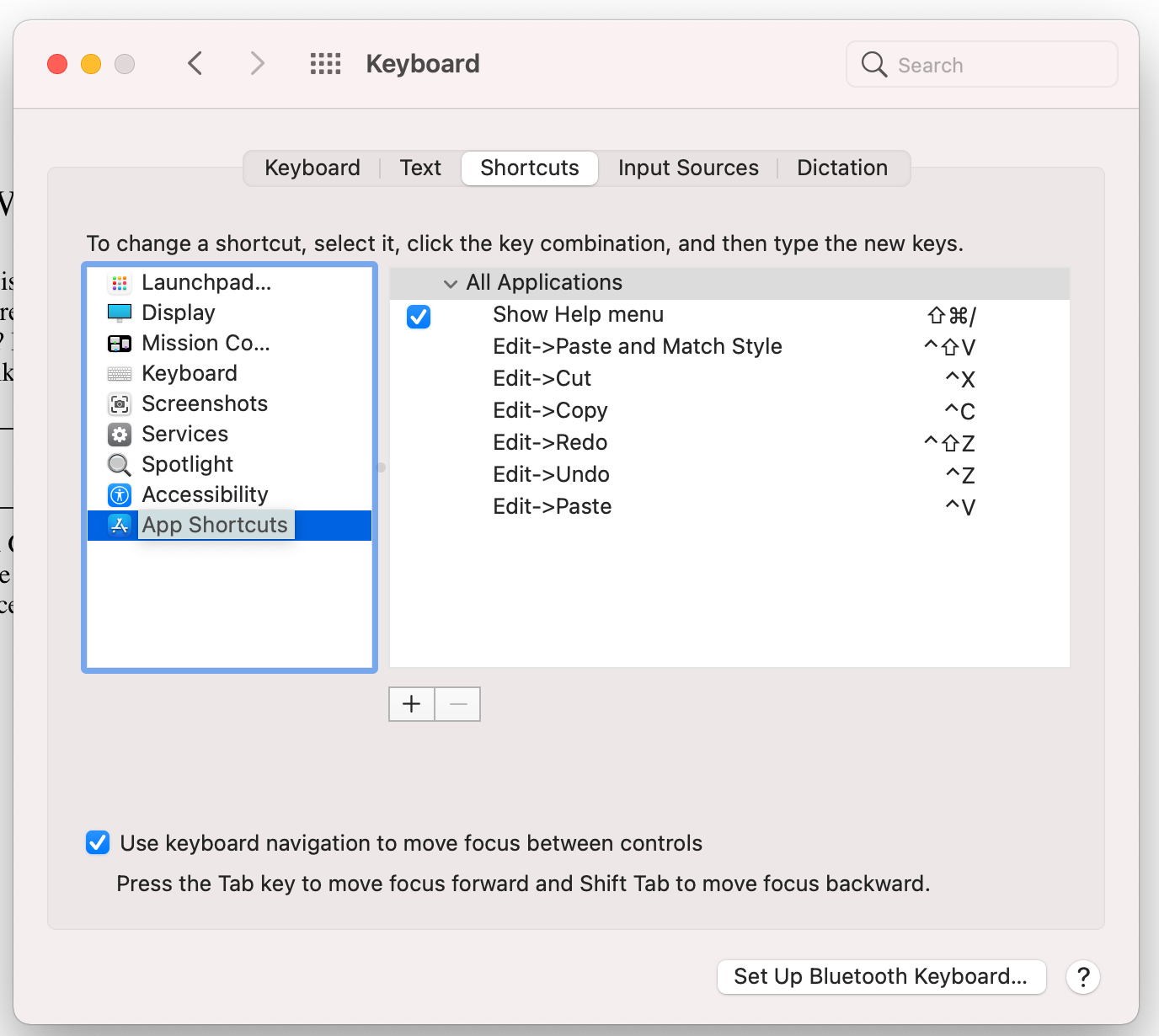
See this for more details. - Another option is to use an app called Karabiner elements. It is a powerful app that allows you to specify keyboard mappings. These are listed under Preferences -> Complex Modifications and stored as json config under
~/.config/karabiner/assets/complex_modifications. Example of a config is shown below:
"description": "PC-Style Find",
      "manipulators": [
        {
          "type": "basic",
          "from": {
            "key_code": "f",
            "modifiers": {
              "mandatory": [
                "control"
              ],
              "optional": [
                "any"
              ]
            }
          },
          "to": [
            {
              "key_code": "f",
              "modifiers": [
                "left_command"
              ]
            }
          ],
This config is saying when user presses Ctrl+F, map it to Cmd+F instead. Thus Ctrl+F becomes an alias of Cmd+F. User presses Ctrl+F, Karabiner translates it to Cmd+F and then Mac OS does what it would do if the user had pressed Cmd+F. I like this because it does not change what Cmd+F would do normally. Now you have two bindings to do the same thing – Cmd+F as well as Ctrl+F. So you can keep on using the default Mac bindings or use the aliases you have defined. This is fundamentally different from defining custom shortcuts in System Preferences -> Keyboard -> Shortcuts -> App Shortcuts. Those shortcuts don’t create aliases. They fundamentally change the keyboard bindings required to perform a task. The old binding will no longer work. See this for more.
Shell Tips
- To change default shell from Zsh to Bash see https://apple.stackexchange.com/a/334543/139331
- For comparison of Zsh vs Bash see https://apple.stackexchange.com/a/361957/139331
- To understand difference between .bashrc, .bash_profile, .zshrc, .zprofile see
Moral:
- For bash, put stuff in
~/.bashrc, and make~/.bash_profilesource it. - For zsh, put stuff in
~/.zshrc, which is always executed.
- You will find packages you install via
homebrewunder/usr/local/opt
Microphone not working
Had exact same problem as here:
My microphone is not working on my MacBook Pro. In the system settings, it shows an internal microphone. but there are no response dots when I speak. Anytime I use Zoom, no one can hear me unless I use my bluetooth headset. I tried apple support by telephone, and they sent me to a store, who fixed it by doing a “control-option-shift-power down” simultaneously and tested it using voicememo. I was happy to not have to send my laptop out for repair. Then it didn’t work for my next zoom call- back to the headset. And I repeated the sequence that worked for the guy in the shop, no luck this time. Anybody got suggestions?
In my case I had my Macbook connected to external display and the lid was down. If I open the lid, the internal microphone is able to pick up my voice. Not sure if closing the lid turns off the microphone or if you need to speak really loud for microphone to be able to catch your voice.
Startup Applications
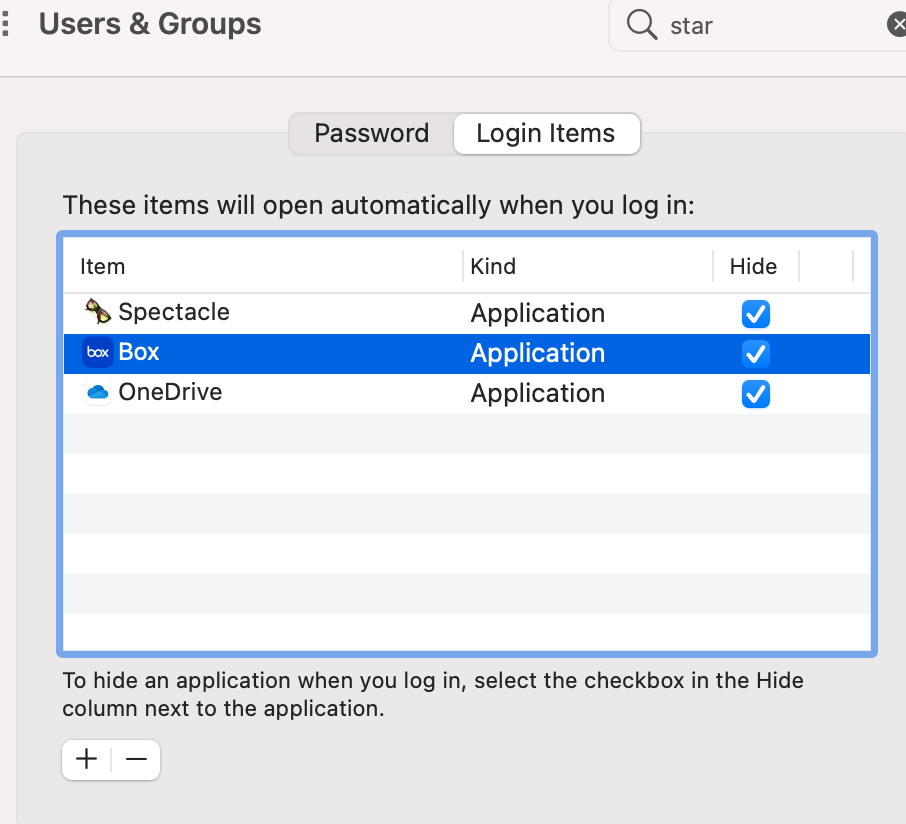
You can control what applications you want to automatically start (launch) when you log into your account. The setting is available under Users & Groups -> Login items:
Allowing untrusted applications to run
Sometimes you will install a binary downloaded from the internet. If MacOS cannot verify the publisher of the binary, it will rightfully display a message
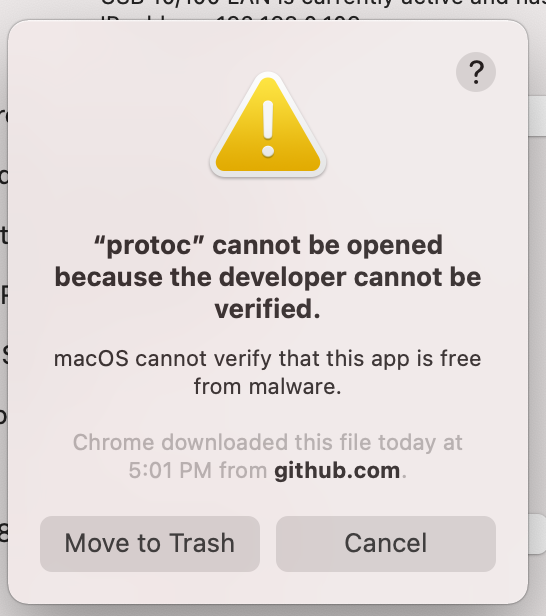
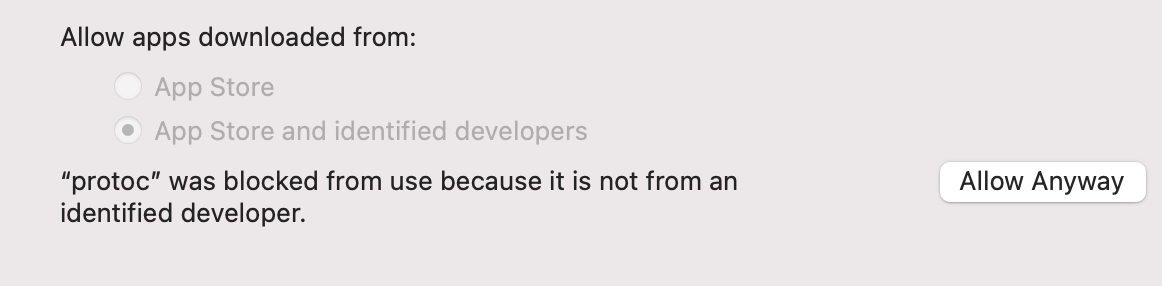
If you still want to run the program goto Apple menu  > System Preferences, click Security & Privacy, then click General. If the lock at the bottom left is locked
  , click it to unlock the preference pane. Then click on Allow anyway
You can also do the above from the command-line. e.g. [1]:
xattr -dr com.apple.quarantine ~/bin/ffmpegReferences
Change Settings from Command Line
All settings are stored under ~/Library/Preferences and .plist files. These are not text files but you can read them like following:
defaults read com.apple.AppleMultitouchMouse.plist
and change a setting like this:
defaults write com.apple.finder AppleShowAllFiles TRUE
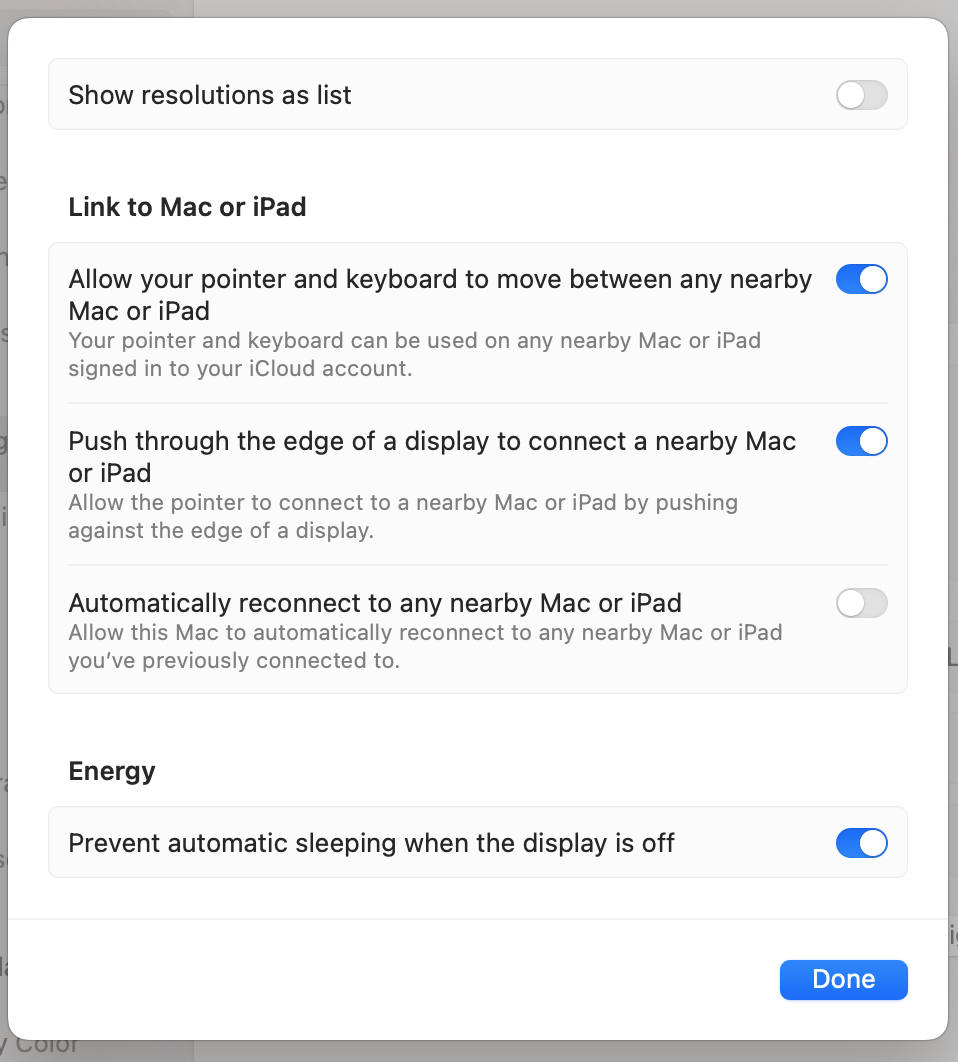
Prevent computer from sleeping when display turns off
This comes in handy when you are ssh'ed to a remote server and running a long executing program. If your computer sleeps the connection will be lost.
 siddharth's space