
Not deleting this post but below steps will not give you the correct rate of return. Excel merely hides the cells that are not marked as CONTRIBUTION. It doesn’t exclude them from the XIRR computation.
- Download your transaction history as a CSV file
- Open this file in Excel
- Click on Data->Filter
- Select the Transaction Column and select CONTRIBUTION (we are only interested in rows that are marked CONTRIBUTION)
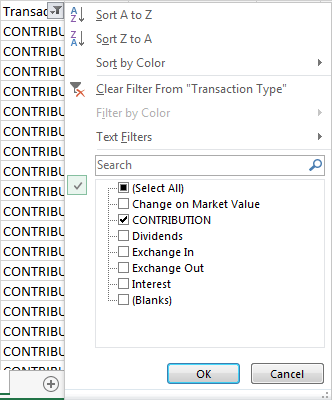
-
- Select the Date Column and Sort from Oldest to Newest (somehow excel doesn’t compute XIRR otherwise)
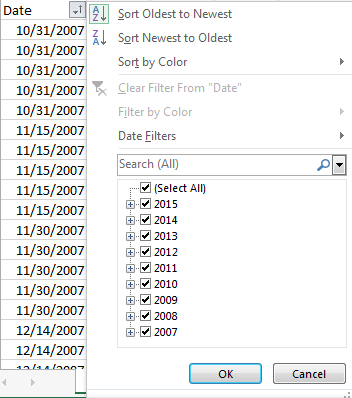
- Create a row at the end of your spreadsheet and enter today’s date and the current value of your portfolio as a negative number
- Select a cell where you want to display XIRR
- Type =XIRR(D1:D100,A1:A100,0.1) Here D1:D100 are the contribution amounts and A1:A100 are the dates. Cell A100 will have today’s date and cell D100 will have current value of the portfolio expressed as a negative number
- if all goes well, Excel should display your rate of return
 siddharth's space